> ## Documentation Index
> Fetch the complete documentation index at: https://www.marqeta.com/docs/llms.txt
> Use this file to discover all available pages before exploring further.
# Transaction Details in the Marqeta Dashboard
> Use Transaction details in the Dashboard to access details about transactions.
Marqeta is migrating dispute management to the new Disputes portal. To learn about the Disputes portal, see [About the Disputes Portal](/developer-guides/about-disputes-portal).
The [Transaction details](/developer-guides/customers-dashboard/#_transaction_details) page provides information that you can use to investigate issues that may have occurred during a transactions. Some instances of transactions that may warrant investigation:
* An unexpected transaction due to a false post—that is, a clearing without a preceding approval or linked approval.
* Why a clearing occurred that should not have cleared.
* Why a transaction was declined.
This information is useful for your customer support agents when a cardholder calls to inquire why a transaction did or did not complete.
Accessing transaction details
To access **Transaction details**:
Open the [Marqeta Dashboard](https://app.marqeta.com/).
Select **Dashboard** in the upper-left corner, then select **Customers > Users** from the sidebar.
Select a customer from the list.
Select the **Transactions** tab.
Select a row to display the details for that transaction.
To view reference information for the fields displayed on the Transaction details page, see [Transaction details](/developer-guides/customers-dashboard/#_transaction_details).
Core details of a transaction
The following sections of the **Transaction details** page provide the core information essential for investigating a transaction:
* Transaction summary
* POS details
* Related transactions
Transaction summary
The summary at the top provides an overview of the transaction and merchant, including the transaction type, current transaction state, and reason for the current state.
 For more information on transaction events and response codes, see [Transaction response codes](#_transaction_response_codes).
POS details
Point-of-sale information is displayed in the **POS details** section. This includes information such as whether the cardholder was physically present during the transaction, whether a chip was used, and the merchant ID. More information is provided in the **Additional details** panel on the right.
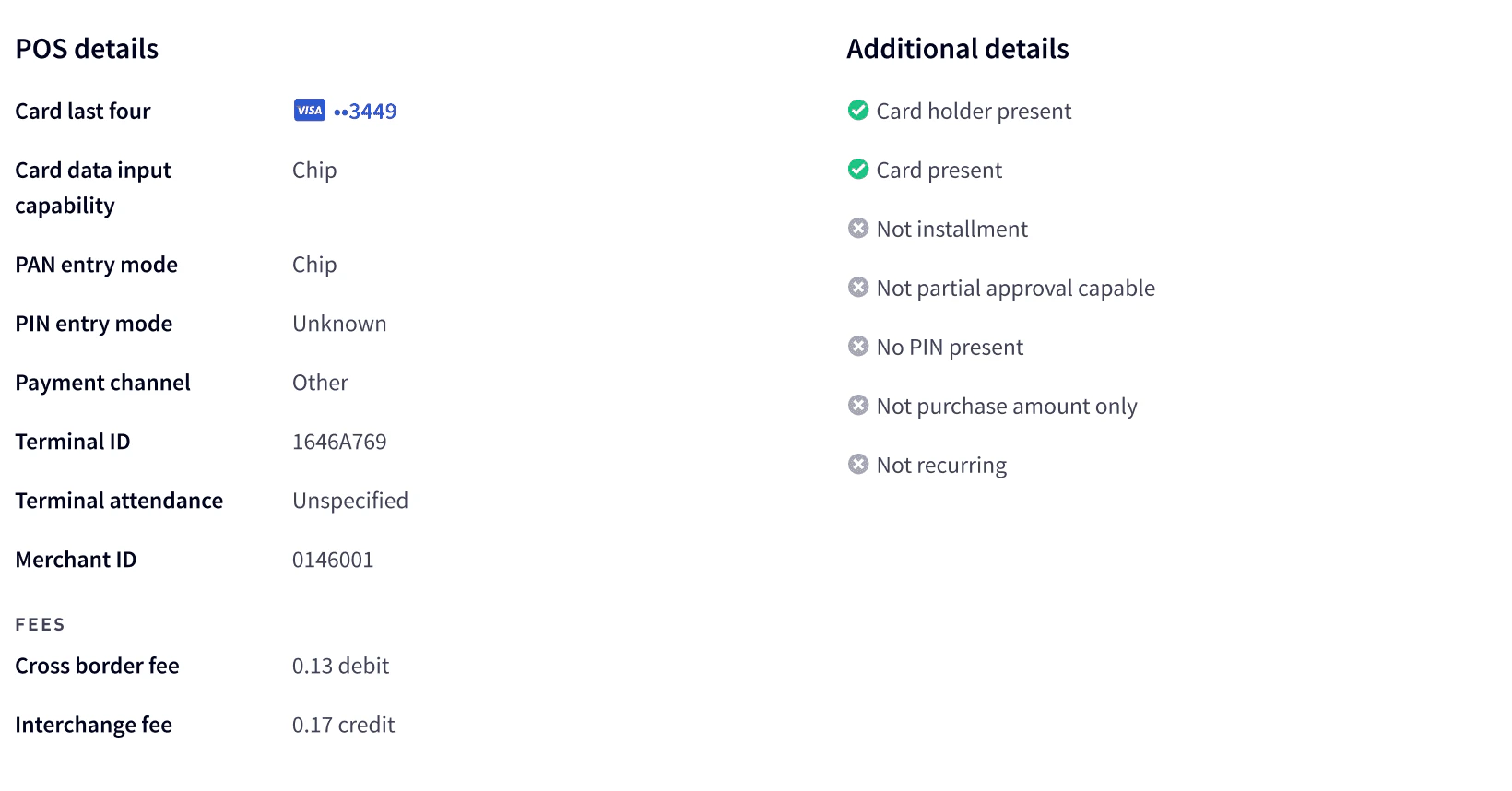 The **Related transactions** section provides a historical log in chronological order, allowing you to follow the sequence of linked transactions that led to the current transaction state. To view more information on the related transaction, select the transaction row.

Determining the cause of a declined transaction
When a transaction is declined, you many need to determine the cause. The **TRANSACTION DETAILS** area in the summary provides basic information about the decline authorization, including the reason for the decline, reason code, and a short description. For a list of reason codes and descriptions, see [Transaction response codes](#_transaction_response_codes).
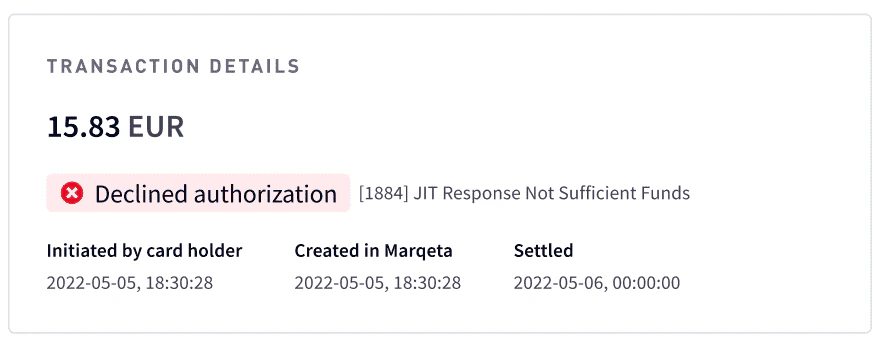 The [POS details](#_pos_details) and [JIT Funding](#_jit_funding_transactions) sections also include useful information about the declined transaction. For JIT transactions, the **Decline reason** field provides the reason that the transaction was declined, such as insufficient funds. Additional information may be available in the **Memo** and **Tags** fields if provided by your organization.
Investigating approved transactions
In some cases, a transaction may have been unexpectedly approved. Some examples are:
* Skipped authorization
* Commando mode approval
* 3DS authentication was exempted
* Merchant chose to push the transaction through
For these transactions, begin with the reason, response code, and description displayed in the **TRANSACTION DETAILS** of the summary. For a list of reason codes and descriptions, see [Transaction response codes](#_transaction_response_codes).
JIT Funding transactions
The **JIT Funding** section shows the result of a JIT Funding transaction, including the customer response. Authorization JIT transactions have a `programgateway` funding type. The following shows the JIT Funding section:
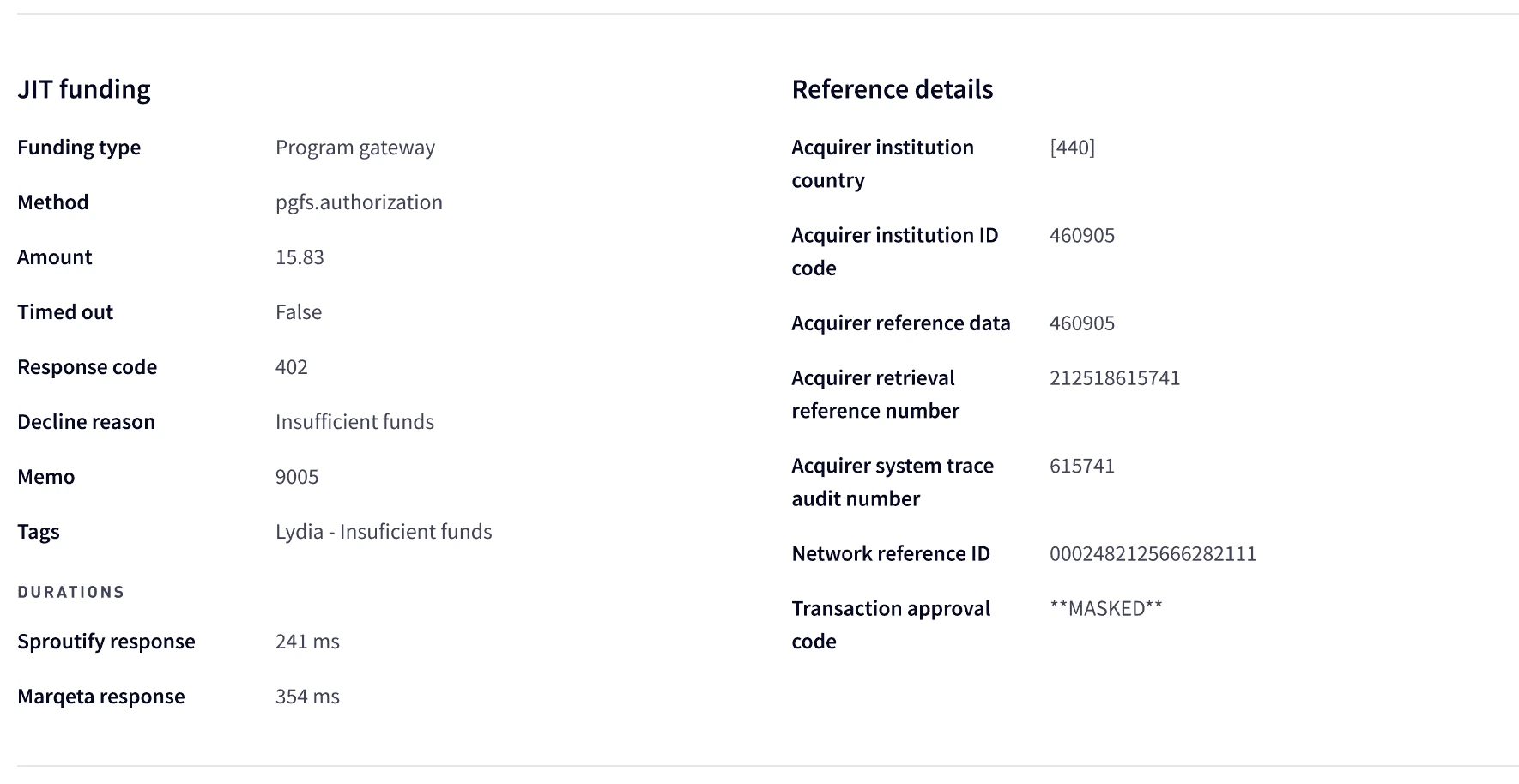 The **Memo** and **Tags** fields may be set by your company to indicate internal decline reasons.
**Note**\
For Visa transactions, the **Network Reference ID** is prepended with `0002`. When researching a transaction with the Visa network, remove the prefix to get the Visa transaction ID.
The **Memo** and **Tags** fields may be set by your company to indicate internal decline reasons.
**Note**\
For Visa transactions, the **Network Reference ID** is prepended with `0002`. When researching a transaction with the Visa network, remove the prefix to get the Visa transaction ID.
Timed-out transactions
Because the card network requires a timely response from the Marqeta platform, there is a timeout limit on the response from your gateway. If your gateway doesn’t respond to the JIT Funding request within three seconds, the Marqeta platform declines the transaction to the network.
If a JIT transaction has timed out, the **Timed out** field is set to `true`. Time details are shown in the **DURATIONS** area. For more information, see [Identifying and resolving timeouts](/developer-guides/managing-timeouts/#_identifying_and_resolving_timeouts).
E-commerce transactions
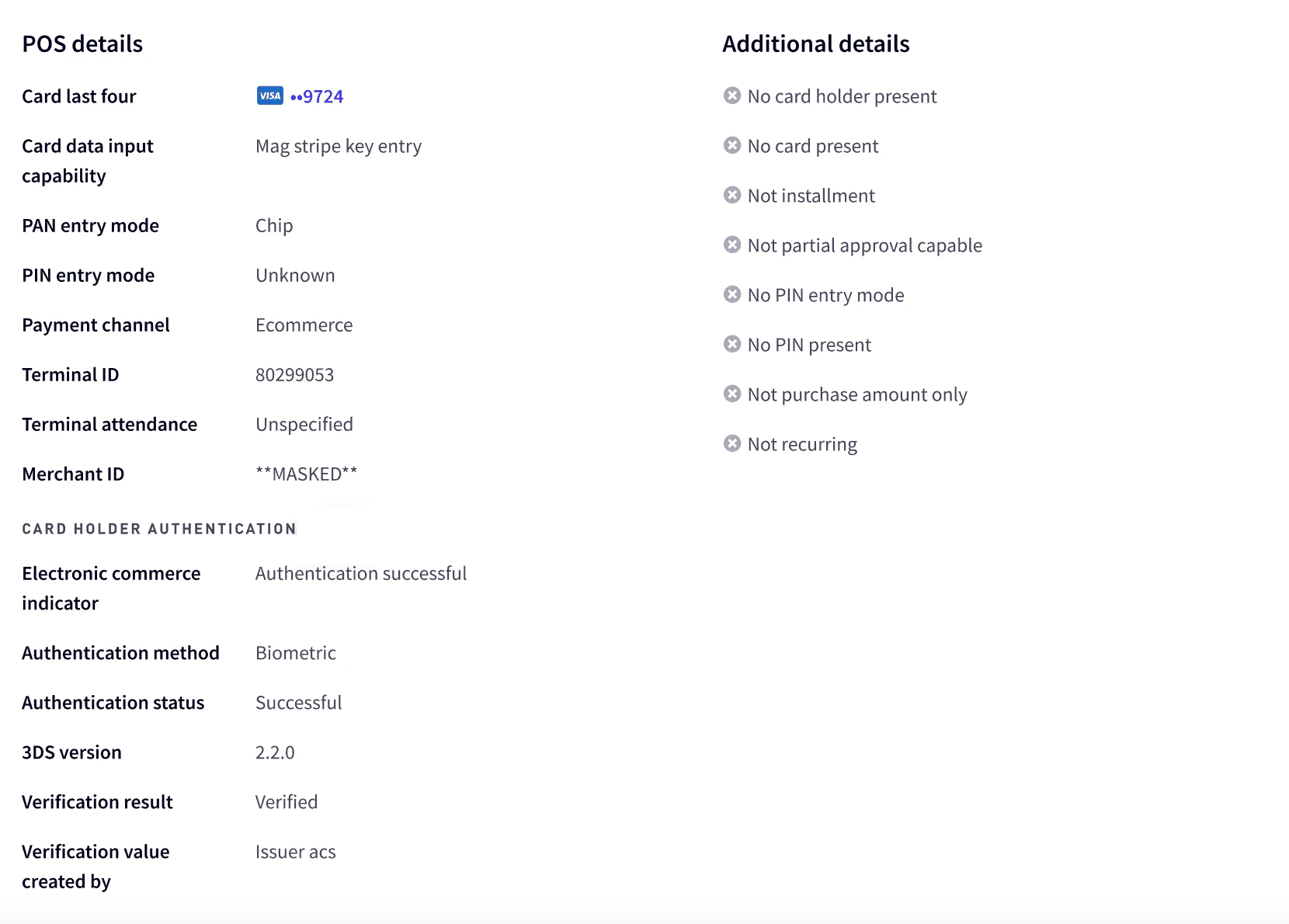
For e-commerce transactions, the **Payment channel** in **POS details** is set to `Ecommerce`. The following additional fields are displayed in **CARDHOLDER AUTHENTICATION** section of the **POS details** section.
* Electronic commerce indicator – The level of verification performed: `Authentication successful`, `Authentication attempted`, or `No authentication`
* Authentication method – The 3D Secure authentication method: `Audio call`, `Behavioral biometrics`, `Biometric face`, `Biometric fingerprint`, `Decoupled`, `Delegated trusted authentication`, `In app login`, `Knowledge based`, `OTP SMS`, `OTP email`, `Secure payment confirmation`, `Video call`, `Voice recognition`, `Web authentication`, or `Other`
* Authentication status – The 3D Secure authentication status: `Cancelled`, `Failed`, `Not authenticated`, `Success`, or `Successful non payment`
* 3DS version – The 3DS version used for authentication.
Token e-commerce transactions
Token e-commerce authorizations have an `Ecommerce` payment channel displayed in the **POS detail** section with additional displayed fields in **Cardholder authentication data** section. When the authorization type is a token e-commerce authorization, the **Digital Wallet token** and **Device** sections are displayed, which provides information about the digital wallet and device used for the transaction.
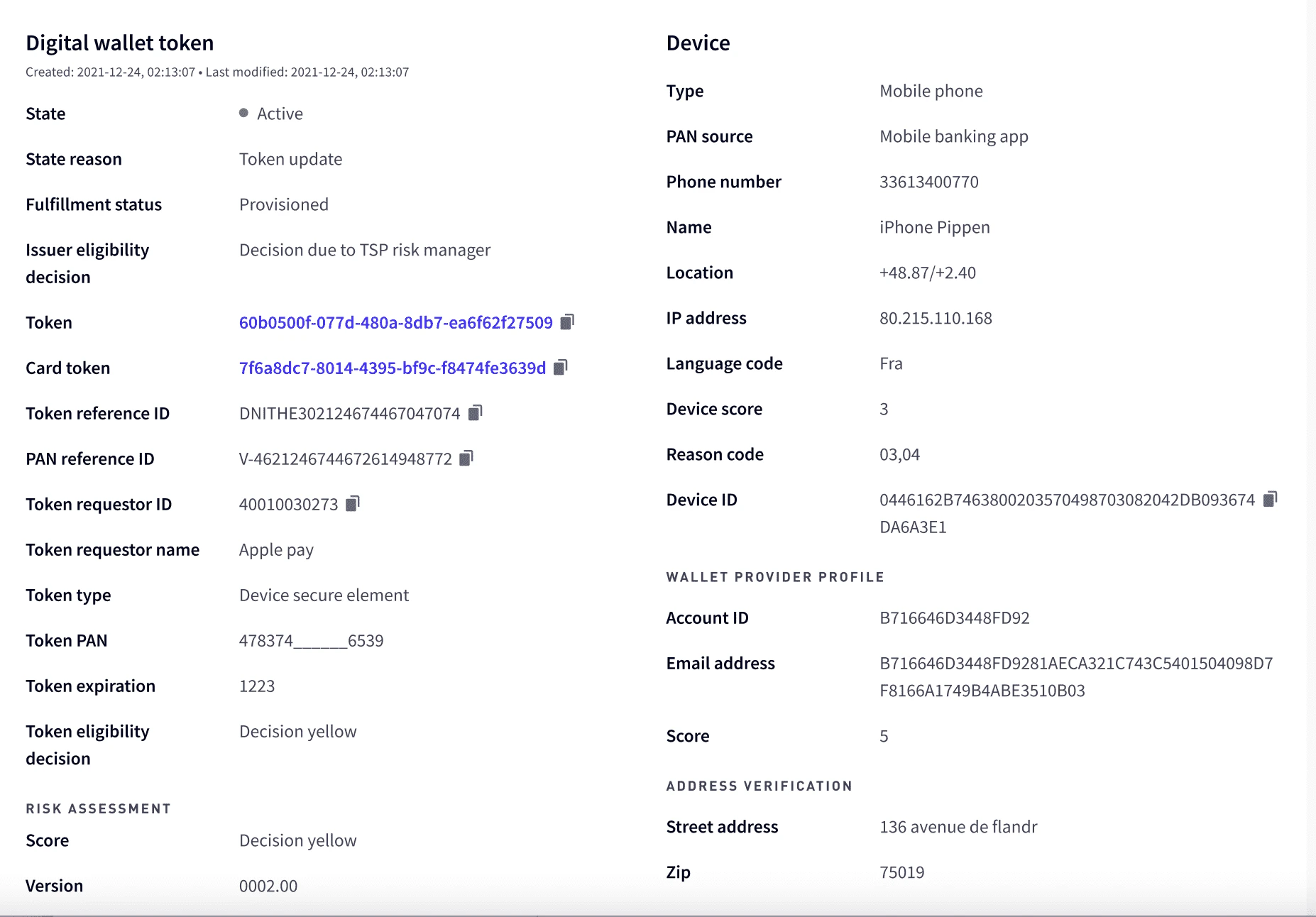 Useful information includes the **Score** field in the **RISK ASSESSMENT** area, which shows the digital wallet’s decision whether the digital wallet token should be provisioned: `Decision red`, `Decision yellow`, or `Decision green`.
Address verification
The **ADDRESS VERIFICATION** area at the bottom of the **Digital wallet token** section displays address verification data. The address is displayed if the address is verified. If the address cannot be verified and the transaction declined, a memo indicates specifically how the address was different and the outcome.

Multi-currency amounts
The **Amounts** section provides details on the transaction amounts, resulting balances, settlement, and currencies.
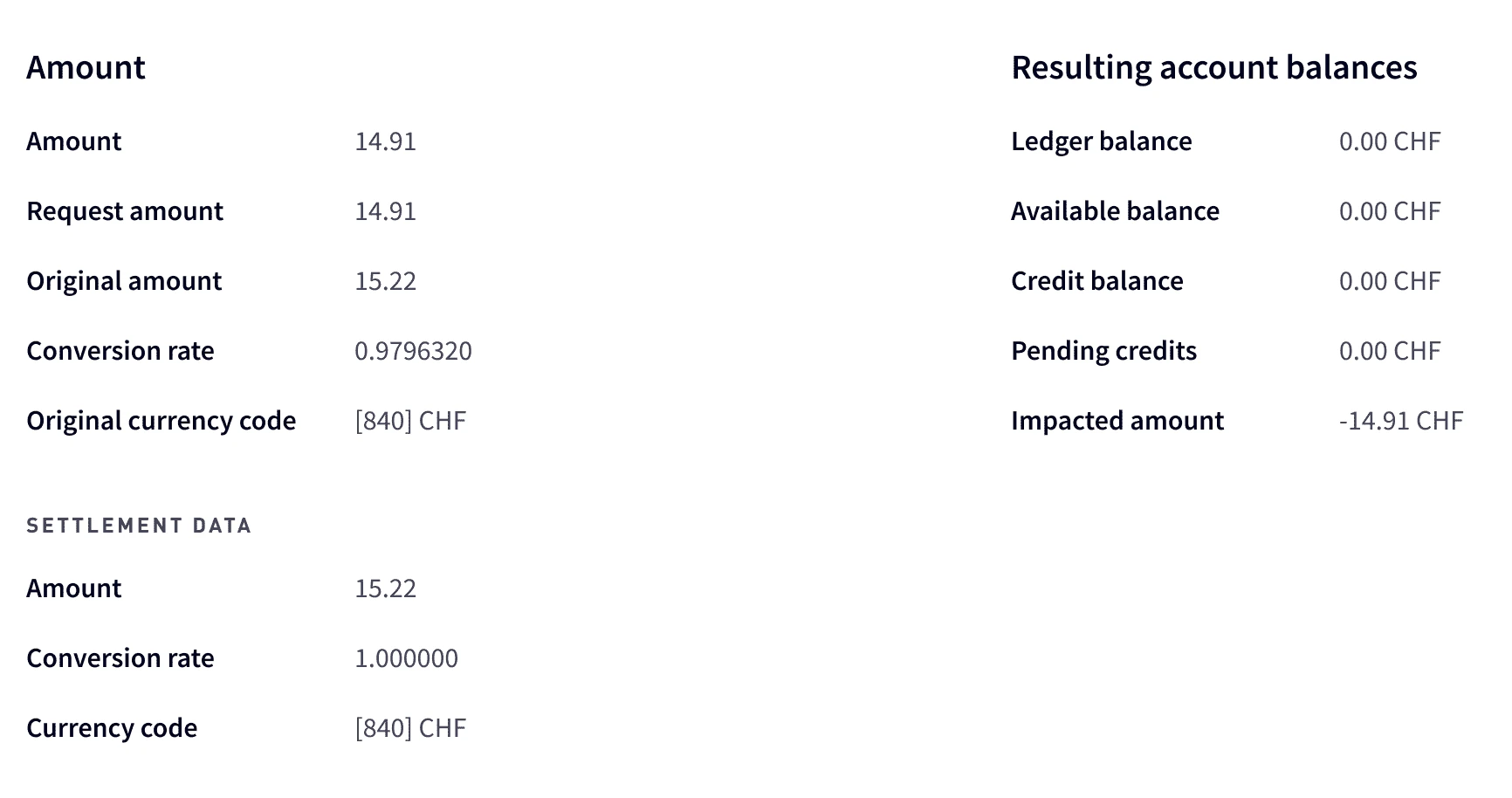 Multi-currency transactions can involve up to three currencies: that used by the card, the local transaction, and the settlement currency. In this scenario, the transaction may authorize in one currency, clear in another, and settle in a third currency.
For additional information about the conversion, see the **Cross border issuer fee** and **Interchange fee** fields in the **POS details** section.
Multi-currency transactions can involve up to three currencies: that used by the card, the local transaction, and the settlement currency. In this scenario, the transaction may authorize in one currency, clear in another, and settle in a third currency.
For additional information about the conversion, see the **Cross border issuer fee** and **Interchange fee** fields in the **POS details** section.
Transaction response codes
A transaction response code is used to describe the outcome of a transaction attempt. Use the response codes displayed in the [Transaction response codes](/developer-guides/about-transactions/#_transaction_response_codes) section of the [About Transactions](/developer-guides/about-transactions/) guide to help you understand a transaction’s outcome.
For more information on the various types of events that the Marqeta platform supports, see the [Transaction events](/core-api/event-types/#_transaction_events) section of the [Event Types](/core-api/event-types/) page.