

Note
After launching your card program in production, Marqeta will handle some of the operations described in this tutorial. Consult your Marqeta representative before trying these steps in production.
- Access the sandbox.
- Create the objects you use in sandbox transactions: a card product, a user, and a card.
- Simulate a transaction.
- Set up and receive a webhook notification about a simulated transaction.
- Access your API credentials.
Step 1 — Create assets
Create an account
Click the sign-up link to create an account on the Marqeta platform: https://auth.marqeta.com/create-account As part of creating your account on Marqeta.com, you will also create a sandbox and a user.Create a sandbox
After you have created your account and signed in again, you are ready to create the sandbox where you can simulate transactions on the Marqeta platform. Click Create sandbox. You will receive an email when your sandbox is ready. The sandbox creation page refreshes to display your Dashboard. Your personal API keys and a cURL to try out the sandbox are provided here.Create a user
The JSON-formatted code sample below creates a simple user by omitting most request fields. See the Users API reference page for more about the/users endpoint.
Save the user token returned in the response, since you will need it to create a card.
JSON
1
Copy the preceding code.
2
Click the POST /users widget below.
3
In the widget, click the Send request tab.
4
Paste the code into the Request body field, replacing any existing sample code already there.
5
Click the Send request button.
6
Scroll down further to the Response body field, find the response’s
token field, and copy it to a text file.Step 2 — Get a card product token
A card product defines the general characteristics and behavior of the cards that are generated from it. See the Card Products API reference page for more about the/cardproducts endpoint.
1
Click the GET /cardproducts widget below.
2
In the widget, click the Send request tab.
3
Click the Send request button.
4
Scroll down further to the Response body field and find the response’s
token field for the card product named “Reloadable Card”. Copy the token to a text file so you have it available later on when creating a card.Create a card
Cards inherit the characteristics of the card products from which they are generated and are owned by users. See the Cards API reference page for more about the/cards endpoint.
The JSON-formatted code sample below is a request that creates a single-use card that will become active immediately upon creation.
JSON
1
Copy the preceding code.
2
Click the POST /cards widget below.
3
In the widget, click the Send request tab.
4
Paste the code into the Request body field, replacing any existing sample code already there.
5
Replace the value of the
user_token field with the token of the user you created previously.6
Replace the value of the
card_product_token field with the token of the card product you created previously.7
Click the Send request button.
8
Scroll down further to the Response body field, find the response’s
token field, and copy it to a text file. You will need this token later when you simulate transactions.Note
If you make the above
POST request to the /cards endpoint more than once, only the last card you create will be active. The state of any card you had previously created is automatically transitioned to TERMINATED.For information about card states, see The card lifecycle.Step 3 — Transact
In this step, you simulate the authorization of a $10 transaction. The sample request includes the required merchant ID number (MID). You will need the card token you created in the previous step. See Simulate authorization for more about the/simulations/cardtransactions/authorization endpoint.
Note
You don’t have to explicitly fund the card before transacting because the sandbox environment includes a Just-in-Time Funding source. The card you created in the previous step is automatically associated with this JIT Funding source.To simulate funding a card by pushing to your user’s general purpose account (GPA) instead, see the sample cURL for Create a GPA order to fund a user account.
JSON
1
Add the preceding code to the simulate a transaction cURL from the Sample cURLs section below.
2
Before executing the cURL, remember to replace the value of the
card_token field with the token of the card you created earlier.Transaction Timeline tool
You can view the transaction you just simulated above using the interactive Transaction Timeline tool. The Transaction Timeline provides a graphical, intuitive representation of how individual transactions impact each other, as well as how they affect the account balance. All public sandbox accounts with the Developer role include access to the Transaction Timeline. For more information about viewing transaction activity in the Transaction Timeline, see the Developer Tools guide.Next steps
This section shows how you can use webhooks to create and receive notifications, as well as how to add spend controls to a user or card product.Add a webhook
In this step, you simulate another authorization transaction, this time with a webhook added to the request. The webhook instructs the Marqeta platform to push an event notification of the transaction to a specified URL. This simulated transaction is initiated by an API call and will receive a response that is identical to the webhook notification.- In a sandbox environment, you can use the Developer Tools UI in the Marqeta Dashboard to create and view your webhook. For more information about working with webhooks in the Marqeta Dashboard, see Manage your webhooks.
- In a production environment, transactions are initiated by merchants from outside the Marqeta environment, and not by an API call. To receive notifications about events in production, you should set up webhooks. Learn about setting up webhooks in the About Webhooks.
"endpoint": "https://marqeta-test.free.beeceptor.com/".
You must replace the value of the card_token field with the token of the card you created.
JSON
1
Copy the preceding code.
2
Create the authorization using POST /simulations/cardtransactions/authorization.
3
Paste the code into the Request body field, replacing any existing sample code already there.
4
Replace the value of the
card_token field with the token of the card you created previously.5
Replace the value of the
webhook.endpoint field with a valid URL for receiving HTTP requests.6
Replace the values of the
username and password fields with valid credentials for accessing the receiving endpoint.
If you are using https://beeceptor.com to receive the notification, you can leave these fields as they are (values are required for these fields, but can be any string).Create spend controls
With the Marqeta platform, you can control a user’s spending based on:- Where the user spends (individual merchants or merchant categories)
- How much the user spends (transaction amounts and frequency of spending)
- How much the user spends with a specified merchant or merchant category
Create an authorization control
The authorization control resource is a spend control on a card product or a user. Authorization controls can either allow spending only at specified merchants, or block spending at specified merchants.JSON
1
Copy the preceding code.
2
Click the POST /authcontrols widget below.
3
In the widget, click the Send request tab.
4
Paste the code into the Request body field, replacing any existing sample code already there.
5
Click the Send request button.
Create a velocity control
The velocity control resource is a spend control that limits how much and how frequently a user or a card product can spend funds.JSON
1
Copy the preceding code.
2
Click the POST /velocitycontrols widget below.
3
In the widget, click the Send request tab.
4
Paste the code into the Request body field, replacing any existing sample code already there.
5
Click the Send request button.
API keys
You need valid API keys if you want to explore the API using your own client application or by executing cURLs. Keys consist of an application token, an admin access token, and the base URL of the sandbox environment. They are listed in your Dashboard: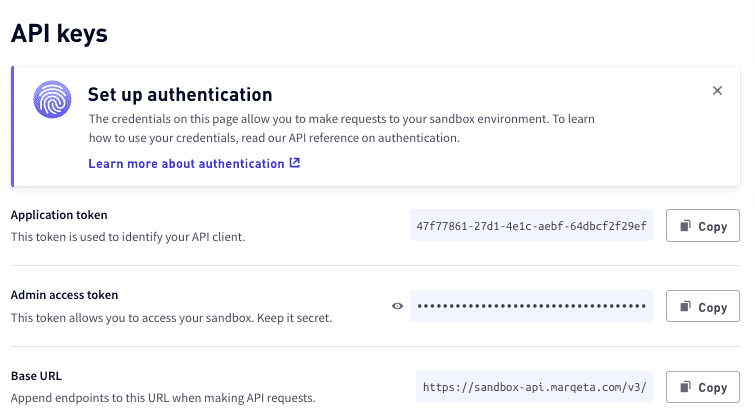
See Sample cURLs for examples of all the requests used in this quick start. For more information about other tools available to help you develop your application, see Developer Tools.
Sample cURLs
If you prefer to make the API calls in this quick start by executing cURLs, use the sample cURLs in this section. Replace username and password in the samples with valid credentials. See API Keys for more information.Create a card product
Save the token returned in the response for later use.cURL
Create a program funding source
Save the token returned in the response for later use.cURL
Create a user
Save the token returned in the response for later use.cURL
Create a card
Save the token returned in the response for later use.cURL
Simulate a transaction
Note
Omit the
webhook object if you do not want to receive an event notification.
Save the token returned in the response for later use.cURL
Create an authorization control
cURL
Create a velocity control
cURL
Create a GPA order to fund a user account
Use this cURL to load $1000 into the general purpose account (GPA) of your user by creating agpaorder object.
The funding_source_token identifies the funding source to use for this transaction; this is how you can access funds outside of the Marqeta platform. You must configure at least one funding source in order to transact in a production environment. Your program funding source token is available in your Dashboard.
The sample below is a request that creates a $1000 gpaorder.
cURL