

Filtering your cases
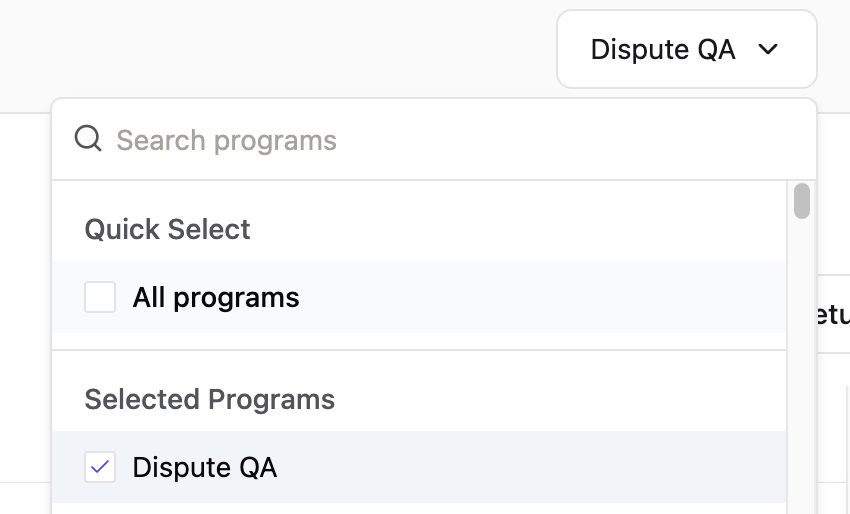
Before you build a filter, choose the scope you want to work in from the dropdown in the top right of the Home page:- All Programs — View cases across every program.
- Single Program — Focus on one specific program.
- Case state — Filter by where cases currently are in the lifecycle, such as open, in review, or closed.
- Dispute reason — Filter by the card network reason code assigned to the dispute.
- Regulation — Filter by the regulatory framework governing the dispute.
Searching across programs
The Disputes portal supports cross-program search, allowing you to find cases across all programs without switching scope. You can search by token directly from the All Programs view.Search by transaction token
Use the transaction token from a completed transaction to find its dispute case:1
Click All Programs from the scope dropdown.
2
Paste the transaction token in the search bar.
3
Press Enter.
4
Select the case token that appears in the results.
Search by case token
Use the case token to open a case directly:1
Click All Programs or the specific program for your case from the scope dropdown.
2
Paste the case token in the search bar.
3
Press Enter.
4
Select the case token from the results.
Filtering and saving custom views
If you rely on the same filters regularly, save them as a custom view so you don’t have to rebuild them each time.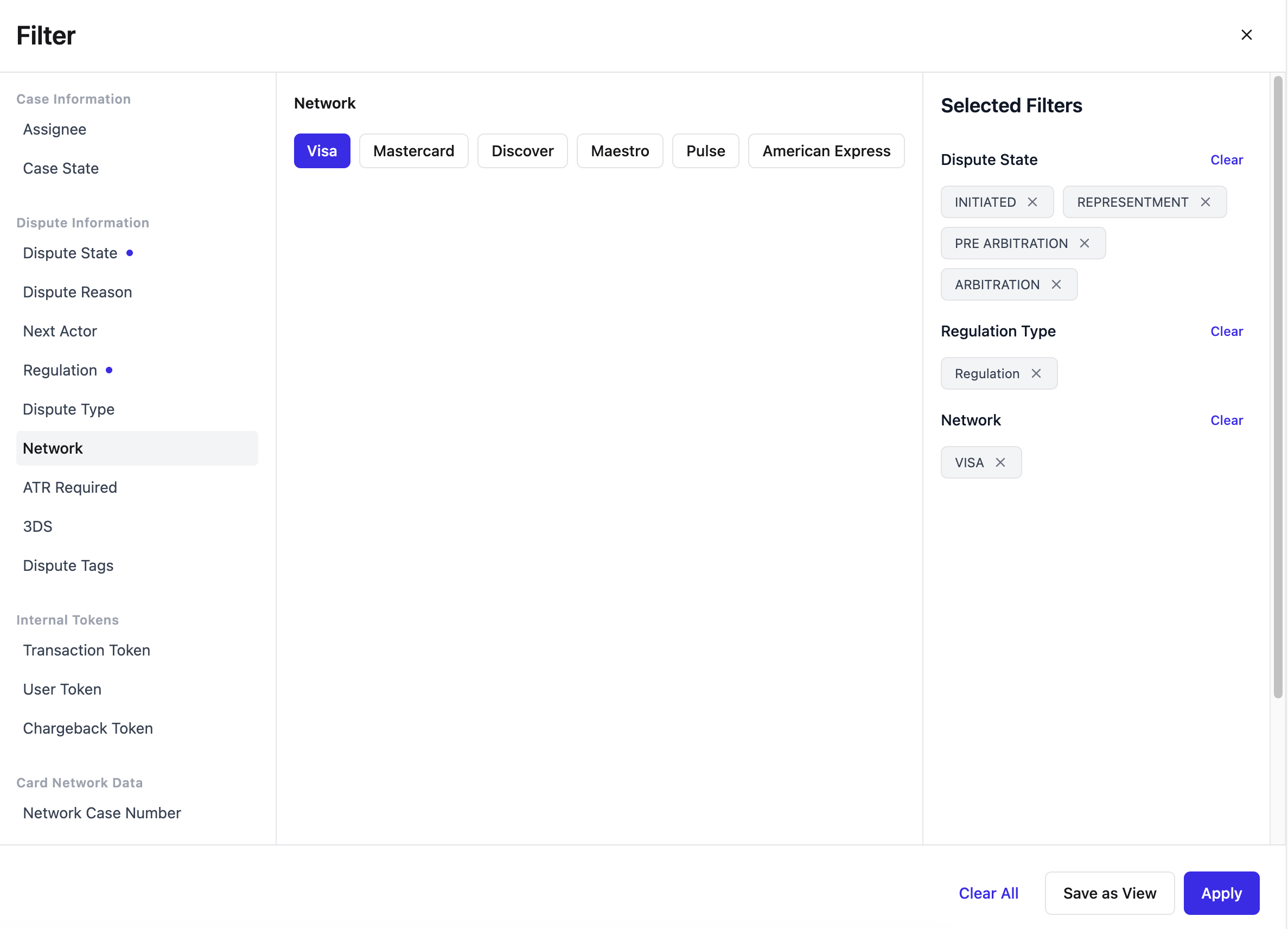
1
In the main case view, click either All Programs or the specific program for your case.
2
Click Filter.
3
Select the attributes you want to filter for, such as case state, dispute reason, or regulation.
4
Click Apply to preview the results.
5
Click Save as View.
6
Under Visibility, choose the Agent option.
7
Give the view a descriptive name.
8
Select an icon to help identify it visually.
9
Click Save.
Best practices
A few habits make finding and organizing work faster:- Filter before you search. Narrow results by case state, dispute reason, or regulation before doing a token search.
- Combine column filters. Typing criteria into multiple columns narrows results quickly.
- Name views clearly. Descriptive names and distinct icons make the right view easy to spot.
- Save frequently used filters. Don’t rebuild the same filters repeatedly.
- Keep tokens handy. Saving transaction and case tokens gives you quick access back to a case.
- Use cross-program search. When you’re not sure which program a case belongs to, search from the All Programs view.