

JIT transaction lifecycle
For both physical and virtual cards, the lifecycle of a JIT transaction begins with an authorization at the time of purchase. When a card is used to make a purchase, an authorization is sent to the Marqeta platform from the card network. The Marqeta platform then sends a JIT authorization request to your JIT gateway. Utilizing business logic you have built in, your JIT gateway sends a response back to the Marqeta platform either approving or declining the authorization request. If your JIT gateway approves the authorization request, the Marqeta platform issues a JIT Load to the GPA associated with the card. The authorization request and the JIT Load occur on the same day. When the card network sends the Marqeta platform a clearing record for the transaction (usually a day or more after the original authorization), the Marqeta platform performs both a JIT Unload and a Partner Funds Load. The Partner Funds Load represents the actual movement of funds to cover the cleared (settled) transaction. The following diagram shows the stages of a normal JIT transaction.
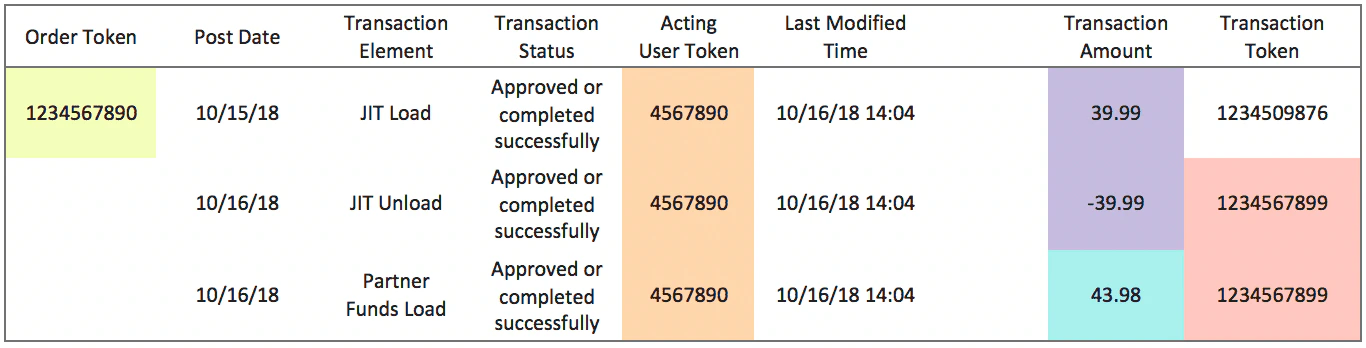
- A JIT Load equals the associated authorization amount (for example, if the Authorization was for $100, the JIT Load should be for $100).
- A JIT Unload is the negative equivalent that offsets the initial JIT Load amount (for example, if the Authorization was for $100, the JIT Load should be for $100 and the JIT Unload should be for -$100).
- A Partner Funds Load equals the associated card network clearing (for example, if the card network clearing amount is -$105, the Partner Funds Load should be for $105).
Note
For a given transaction, an authorization amount does not always equal the clearing amount, in which case the associated JIT Loads and Partner Funds Loads might not be equal. This might be due to tips or other adjustments that were not included at the time of authorization but were included in the clearing amount sent by the merchant to the card network.
For a given transaction, an authorization amount does not always equal the clearing amount, in which case the associated JIT Loads and Partner Funds Loads might not be equal. This might be due to tips or other adjustments that were not included at the time of authorization but were included in the clearing amount sent by the merchant to the card network.
Mapping the JIT transaction lifecycle to reports
The Data Insights, Visualizations, and Analytics (DiVA) application provides reports that include information about JIT transactions. You can find useful information in the Authorization, Loads, and Settlement reports. The tables below show the fields from these reports that provide information on the lifecycle of a JIT transaction. Fields highlighted with color correspond to fields from the other reports highlighted with the same color. For details on how to access JIT-related fields in the DiVA reports, see Using reports to view JIT transaction information later on this page. Authorizations Detail report

JIT reporting calculations and reconciliation
Reconciliation of standard transactions involves examining the Partner Funds Loads moving money into a GPA and the clearing records moving money from the GPA. In the case of a JIT transaction, the objective of tracking money movement is the same, but also includes the addition of JIT Loads and JIT Unloads. These additions can sometimes cause confusion due to their timing (with authorizations and with clearing records), but DiVA monitors all parts of the movement so that you can investigate as needed. This section describes some useful fields in the DiVA reports and the most direct way to use them for reconciling JIT transactions. For details on where to find each field in the reports, see Using Reports to View JIT Transaction Information section below.Clearing records
When added together, Signature Purchases Net and PIN Purchases Net provide the Total Net Purchases. The Total Net Purchases number represents all purchases that have cleared (including forced post transactions), minus any returns. Signature Purchases Net + PIN Purchases Net = Total Net Purchases = Total Volume of Settled Transactions Sig Purchases Net and Pin Purchases Net are aggregated fields available on the Balance Overview report.Net calculation of money movement
Partner Funds Loads Net represents the actual movement of funds from the cardholder’s account to the card network settlement account to cover transactions for which a clearing from the card network (otherwise known as settled transactions) has been received. Because of this, for a given time period, Partner Funds Loads Net should always be equal to Total Net Purchases (Sig Purchases Net + Pin Purchases Net). Total Net Purchases = Partner Funds Loads = Total Dollar Value that moved to cover Settled Transactions Both the Partner Funds Loads Net and JIT Loads Net fields are available on the Balance Overview report.Calculating the amount to send
The amount to send, available in the Amount to Send field on the Program Reserve Balances report, represents the sum of all funds moved to cover settled transactions (Partner Funds Loads Net), as well as transactions that have been authorized but are not yet settled (Jit Loads Net). The following shows how the Amount to Send value is calculated. Amount to Send = (Partner Funds Loads + Partner Funds Unloads + Partner Funds Adjustments) + (JIT Loads + JIT Unloads + JIT Adjustments) = Partner Funds Loads Net + JIT Loads Net The Amount to Send value is typically negative because it represents money that should leave the account. The Amount to Send value could be positive if your program has a higher value of returns than cleared purchases for a given time period. Partner Funds Loads Net and JIT Loads Net are positive values. With this in mind, if you add JIT Loads Net to Amount to Send, the value should be equal to Partner Funds Loads Net, which is equal to Total Purchases Net (Sig Purchases Net + Pin Purchases Net). Total Net Purchases = Partner Funds Loads Net = (Amount to Send + JIT Loads Net) The Partner Funds Loads Net, Jit Loads Net, Sig Purchases Net, and Pin Purchases Net fields are all available in the Balance Overview report.Using reports to view JIT transaction information
The Marqeta Dashboard provides a graphical user interface for retrieving reports that include information useful for monitoring JIT transactions. This section describes how to retrieve each report. For each report, there are many fields that can be retrieved. Here, the fields that are relevant to JIT Funding reporting and reconciliation are described.Balance Overview report
The Balance Overview report is a daily log of authorizations and clearings, showing funds loaded and unloaded from cards, as well as the purchases and returns that have settled. To view a Balance Overview report:- In the sidebar, select Reports.
- Select Balance > Overview, and then select Day. After you select the report, the data is exposed and the filtering and visualization tools are available.
Authorizations Detail report
The Authorizations Detail report provides transaction-level details for each authorization attempt, showing the date and time for purchases and status. To view an Authorizations Detail report:- In the sidebar, select Reports.
- Select Card transactions > Authorizations, and then select Detail. After you select the report, the data is exposed and the filtering and visualization tools are available.
Loads Detail report
The Loads Detail report provides a detailed view of the funds loaded for each card transaction for the previous day. The sum of the “Amount” column on the Loads Detail report matches the “Amount to Send” column of the Program Reserve Balances report. Positive values for “Amount” mean that funds are to be transferred from the program reserve account to the cardholder’s account. To view a Loads Detail report:- In the sidebar, select Reports.
- Select Card transactions > Loads, and then select Detail. After you select the report, the data is exposed and the filtering and visualization tools are available.
Settlements Detail report
The Settlements Detail report provides transaction-level detail of each clearing, showing the date and time for purchases and returns associated with authorization transactions. To view a Settlements Detail report:- In the sidebar, select Reports.
- Select Card transactions > Settlements, and then select Detail. After you select the report, the data is exposed and the filtering and visualization tools are available.
Reserve Balances report
Note
This report is limited in availability. For more information, contact your Marqeta representative.
This report is limited in availability. For more information, contact your Marqeta representative.
- In the sidebar, select Reports.
- Select Balance > Reserve Balances.
- Select Prefunded — Day, Prefunded — Month, FOS — Weekend Prefund, or FOS — Weekend Prefund Projections. The data is exposed and the filtering and visualization tools are available.