Warning
This page is currently deprecated and the functionality it describes will soon be unavailable. To learn more, contact your Marqeta representative.
This page describes a deprecated version (v1.1.0) of the Marqeta.js library that will be phased out at some point in 2024. New applications should integrate with the latest version of Marqeta.js, v2.0.0, instead. It is recommended that you upgrade your integration to version v2.0.0 if you wish to support PIN Reveal functionality for your cardholders. You can view the documentation for the current version of the Marqeta.js library here. Marqeta provides a JavaScript library that enables you to display sensitive card data in your application or webpage while limiting your data security compliance burden. Marqeta.js injects a set of configurable iframes into your HTML showing the cardholder’s card data. The iframes enable you to display a virtual card without handling sensitive card data on your servers. Instead, Marqeta hosts the data on secure, compliant servers. You can present a complete card—including the PAN, expiration date, and CVV2 elements—or individual elements. Marqeta.js can also add buttons to your application or webpage that copy a card’s PAN, expiration date, or CVV2 to the clipboard.
Note
While the Marqeta.js iframe feature reduces your burden of achieving data security compliance, it does not eliminate it entirely, and is only appropriate for certain use cases. Contact your Marqeta representative about using the Marqeta.js library.
At the end of this guide, you should understand:
  • How to integrate with Marqeta.js.
  • How to obtain a client access token.
  • How to inject the Marqeta.js iframes into your HTML.

Prerequisites

Concepts

Data security compliance

Companies that store, transmit, or process sensitive card data, including the primary account number (PAN), expiration date, and card verification value (CVV2), must comply with the Payment Card Industry Data Security Standard (PCI DSS). Achieving PCI DSS certification is both time consuming and expensive. Marqeta.js offloads some of the PCI compliance burden (for certain use cases) by enabling the encrypted transmission of sensitive card data. Marqeta is fully PCI-Service Provider Level 1 compliant and handles the unencrypted sensitive card data for you. Your servers never store, transmit, or process the card data.
Warning
Card data is less secure when copied to the clipboard than when left in this PCI-compliant widget. Cardholders should adopt data security best practices and take precautions to keep their sensitive data safe.

Dynamic card data iframes

The iframes injected by Marqeta.js enable you to control the styling and layout of the HTML pages you serve to client applications, while delegating secure handling of sensitive data to Marqeta servers. They also provide the transparent button UI elements used for copying sensitive data to the clipboard. These elements are transparent so you can overlay them over your custom user interface to intercept click events. They require no customization. You create and style pages in whatever manner you desire, and Marqeta.js inserts the card data and button UI elements into the page locations specified in the HTML.
Tip
To display virtual cards within a mobile application, you can embed the iframes using a webview.

Encryption and card data flow

The following process describes how Marqeta.js injects the iframes into your application. See the tutorial on this page for more details.
How Marqeta.js injects iframes into your application
1
Your application’s backend requests a client access token.
2
The Marqeta API creates a Base64-encoded client access token. This token enables access to the specified card and will expire after five minutes.
3
Your backend passes the client access token to your JavaScript.
4
Your JavaScript injects the client access token into the marqeta.bootstrap() method through a configuration object.
5
Your JavaScript executes marqeta.bootstrap(), which initializes and configures Marqeta.js.
6
Marqeta.js injects the card data and buttons into the HTML container using separate iframes for the card’s PAN, CVV2, and expiration date (as well as for their respective Copy to Clipboard buttons). These optional buttons appear only if you choose to integrate the Copy to Clipboard functionality.
7
The HTML page displays the card data.

The configuration object

The .bootstrap() method of Marqeta.js requires a configuration object, which defines the attributes and behaviors of the iframes. You must include the ID of the div element into which Marqeta.js injects the individual iframes of card data. The configuration object
FieldsDescription
clientAccessToken

string

Required
Client access token obtained from the Marqeta API.

Allowable Values:

Client access token
showPan

object

Required
Specifies the card data to display and applies typographical styling to the data.

Include the cardPan object to display the PAN, the cardExp object to display the expiration date, and the cardCvv object to display the CVV2 number.

Allowable Values:

Any combination of cardPan, cardExp, and cardCvv objects.
callbackEvents

object

Optional
Defines customizable event handlers that are executed upon success or failure of iframe rendering.

Allowable Values:

Existing object.

The showPan object

Within the configuration object, you must include the showPan object. The showPan object specifies which card attributes to display. It can contain any of the following optional objects:
  • cardPan — The card’s PAN.
  • cardExp — The card’s expiration date.
  • cardCvv — The card’s CVV2.
  • copyCardPan — A transparent button used to copy the card’s PAN to the clipboard.
  • copyCardExp — A transparent button used to copy the card’s expiration date to the clipboard.
  • copyCardCvv — A transparent button used to copy the card’s CVV2 to the clipboard.
Tip
If you include a copyCard* object, you should also include its associated card* object. For example, if you include the copyCardPan object in the showPan object, you should also include the cardPan object.
Any cardPan, cardExp, or cardCvv objects included within the showPan object have their associated values injected as iframes within the div container you specified in the configuration object. For each included object, you must specify the div element that contains the iframe. You can also configure the appearance of the card data using the styles object within each of the cardPan, cardExp, and cardCvv objects. The showPan.copyCardPan, showPan.copyCardExp, and showPan.copyCardCvv objects support transparent mode only, and do not contain a styles object or a span.
Note
Marqeta.js only supports web-safe/system fonts that can be displayed on modern web browsers without a specific download.
ObjectSupported SelectorsSupported Attributes
cardPanspan, span:hovercolor, font-family, font-size, background, font-weight, letter-spacing
cardExpspan, span:hovercolor, font-family, font-size, background, font-weight, letter-spacing
cardCvvspan, span:hovercolor, font-family, font-size, background

The showPan.cardPan and showPan.cardExp objects

FieldsDescription
domId

string

Required
Associates the cardPan and cardExp elements with their corresponding div elements.

Allowable Values:

Must match the DOM ID of the corresponding “div” element.

For example, showPan.domId must match the id attribute of the div element that will contain the card PAN iframe.
format

boolean

Optional
Set to true to format the element’s content.

The content of cardPan is formatted as:
“XXXX XXXX XXXX XXX”

The content of cardExp is formatted as:
“XX/XX”

Allowable Values:

true, false

Default value:
false
styles

object

Optional
A CSS-like style object applied to the iframe holding the card data.

Allowable Values:

Existing object.
styles.\

object

Optional
Replace\\ with one of the supported selector values.

Supported selectors:
span, span:hover

Supported CSS attributes:
color, font-family, font-size, background, font-weight, letter-spacing

NOTE: CSS importing schemes such as @import and @url are not supported. Marqeta.js only supports web-safe/system fonts that can be displayed on modern web browsers without a specific download.

Allowable Values:

Your custom styles object.

The showPan.cardCvv object

FieldsDescription
domId

string

Required
Associates the cardCvv element with its corresponding div element.

Allowable Values:

Must match the DOM ID of the corresponding “div” element.

That is, cardCvv.domId must match the id attribute of the div element that will contain the card CVV2 iframe.
styles

object

Optional
A CSS-like style object applied to the iframe holding the card data.

Allowable Values:

Existing object.
styles.\

object

Optional
Replace \\ with one of the supported selector values.

Supported selectors:
span, span:hover

Supported CSS attributes:
color, font-family, font-size, background

NOTE: CSS importing schemes such as @import and @url are not supported. Marqeta.js only supports web-safe/system fonts that can be displayed on modern web browsers without a specific download.

Allowable Values:

Existing object.

The showPan.copyCardPan, showPan.copyCardExp, and showPan.copyCardCvv objects

FieldsDescription
domId

string

Yes
Associates the copyCardPan, copyCardExp, and copyCardCvv elements with their corresponding div elements.

Allowable Values:

Must match the DOM ID of the corresponding div element. That is, copyCardPan.domId must match the id attribute of the div element that will contain the card PAN iframe’s Copy to Clipboard button.
mode

enum

Yes
With transparent mode, you can customize the look-and-feel of the Copy to Clipboard button within the parent div, and allow the transparent iframe to intercept click events. For example, you can provide your own button UI element inside the div, and the injected iframe will be positioned on top of the button to handle copying the text in a PCI-compliant manner.

The iframe injected by Marqeta.js will be transparent, absolutely positioned to the bounds of the parent div element, and given a high z-ordering. The entire iframe region will handle clicks.

The parent div element must have its CSS position set to relative, for example style="position: relative;" to ensure it remains tightly aligned with its iframe.

Allowable Values:

Only transparent is supported.
onCopySuccess

event handler

No
Called when the element’s text is successfully copied to the clipboard.

You can use this callback to update your user interface in response to a click.

Allowable Values:

A function with no parameters.
onCopyFailure

event handler

No
Called when there is an error attempting to copy the element’s text to the clipboard.

Allowable Values:

A function with the error object as its parameter.
The callbackEvents object specifies the methods executed upon the success and failure events when rendering the iframes.

The callbackEvents object

FieldsDescription
onSuccess

event handler

Optional
Executed upon success of iframe rendering.

You can customize the method within this event handler to perform whatever action you want.

Allowable Values:

A method
onFailure

event handler

Optional
Executed upon failure of iframe rendering.

You can customize the method within this event handler to perform whatever action you want.

Allowable Values:

A method

Copying card data to the clipboard

You can add transparent iframes to your application or webpage that capture clicks to copy a card’s PAN, expiration date, or CVV2 to the clipboard of the cardholder’s device. For example, in a POS financing scenario, your cardholders can click the buttons provided by the .copyToClipboard() method to help them avoid manually copying card data from a newly issued virtual card to the vendor’s application where they are making a purchase. Each iframe is associated with a parent div element. Your application or webpage requires a separate parent div element for each card data element you want to copy to the clipboard. The iframe containing the transparent Copy to Clipboard button is positioned precisely to the bounds of the parent div, so that it can intercept all click events. If your button is not responding to clicks, ensure that the iframe is positioned correctly. By handling the clicks within an iframe, your application avoids entering PCI scope. You must supply your own visible button UI element inside each parent div that contains the card data to copy. To respond to clicks within the parent div, you must specify a callback function for the onCopySuccess field. This event handler is triggered when data is successfully copied to the clipboard in response to a click event, enabling you to perform an action such as updating your application’s user interface or webpage. The following HTML example displays a Copy PAN to Clipboard button as an icon:
HTML
<div id='pan-container'></div>
<div id='copy-pan-container' style="position: relative;">
  <img src="myCopyPanIcon.jpg" alt="Copy PAN">
</div>

<script>
marqeta.bootstrap({
  "clientAccessToken": "**CLIENT_ACCESS_TOKEN**",
  "showPan": {
    "cardPan": {
      "domId": "pan-container",
      "format": true,
      "styles": styles.cardPan.styles,  // A custom styles object
    },
    "copyCardPan": {
      "domId": "copy-pan-container",
      "mode": "transparent",
      "onCopySuccess": () => alert("Copied PAN!"),
      "onCopyFailure": error => {
        console.error(error);
      }
    },
  },
  "callbackEvents": {
    "onSuccess": () => {
      console.log("Success!");
    },
    "onFailure": error => {
      console.error(error);
    }
  }
});
</script>
When the cardholder clicks any of the transparent iframes, Marqeta.js displays a toast notification in the lower-left corner of the application window or webpage. The toast notification informs the cardholder of the implications of copying sensitive card data to the clipboard. After Marqeta.js displays the notification, it is not presented to the cardholder again on the same device for 90 days to optimize the user experience. Your site must allow access to localStorage because that is where Marqeta.js keeps track of the last time the notification was presented.
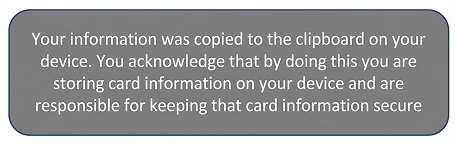
Example toast notification
The toast notification has default inline styles that you can override to match your application or webpage’s design by using the !important rule.

Resetting Marqeta.js

Marqeta.js also provides a .destroy() method. Run marqeta.destroy() to reset Marqeta.js and any existing configurations.

Tutorial

This tutorial shows you how to display a virtual card’s sensitive data using iframes on your application or webpage. In this scenario, you will display a virtual card’s PAN, expiration date, and CVV2 on an otherwise blank webpage, enabling you to display a virtual card’s data to your customer. You will also add three buttons to facilitate copying card data to the clipboard.
Note
This tutorial assumes you have already worked with Marqeta to enable Marqeta.js for your program.
When you are finished, your HTML code should look like the following:
HTML
<!doctype html>
<html>
  <head>
    <meta charset="utf-8">
    <title>Marqeta.js Tutorial</title>
    <style type="text/css">
      #copy-pan-container:hover > img /* styles */
      #copy-exp-container:hover > img /* styles */
      #copy-cvv-container:hover > img /* styles */
    </style>
  </head>
  <body>
    <!-- div elements for displaying and copying PAN, expiration date, and CVV -->
    <div>
      <div id='mq-card-pan'></div>
      <div id='mq-card-exp'></div>
      <div id='mq-card-cvv'></div>
      <div id='copy-pan-container' style="position: relative;">
        <img src="copyPanIcon.jpg" alt="Copy card number">
      </div>
      <div id='copy-exp-container' style="position: relative;">
        <img src="copyExpIcon.jpg" alt="Copy expiration date">
      </div>
      <div id='copy-cvv-container' style="position: relative;">
        <img src="copyCvvIcon.jpg" alt="Copy CVV">
      </div>
    </div>

    <!-- Reference Marqeta.js -->
    <script src="https://widgets.marqeta.com/marqetajs/1.1.0/marqeta.min.js" type="text/javascript"></script>
    <script>
    // Call the bootstrap method
    marqeta.bootstrap({
      "clientAccessToken": "**CLIENT ACCESS TOKEN**",
      "showPan": {
        "cardPan": {
          "domId": "mq-card-pan",
          "format": true,
          "styles": styles.cardPan.styles  // A custom styles object
        },
        "copyCardPan": {
          "domId": "copy-pan-container",
          "mode": "transparent",
          "onCopySuccess": () => alert("Copied PAN!"),
          "onCopyFailure": error => {
            console.error(error);
          }
        },
        "cardExp": {
          "domId": "mq-card-exp",
          "format": true,
          "styles": styles.cardExp.styles  // A custom styles object
        },
        "copyCardExp": {
          "domId": "copy-exp-container",
          "mode": "transparent",
          "onCopySuccess": () => alert("Copied expiration date!"),
          "onCopyFailure": error => {
              console.error(error);
          }
        },
        "cardCvv": {
          "domId": "mq-card-cvv",
          "styles": styles.cardCvv.styles  // A custom styles object
        },
        "copyCardCvv": {
          "domId": "copy-cvv-container",
          "mode": "transparent",
          "onCopySuccess": () => alert("Copied CVV2!"),
          "onCopyFailure": error => {
            console.error(error);
          }
        },
      },
      // Specify callback functions
      "callbackEvents": {
        "onSuccess": () => { console.log("Success!")
        },
        "onFailure": error => {
          console.error(error);
        }
      }
    });
    </script>
  </body>
</html>

Step 1 — Prepare a blank HTML page

Before integrating with Marqeta.js, prepare an otherwise blank HTML page. Create a new HTML file and add the following code:
HTML
<!doctype html>
<html>
  <head>
    <meta charset="utf-8">
    <title>Marqeta.js Tutorial</title>
  </head>
  <body>
  </body>
</html>

Step 2 — Reference Marqeta.js

If you are working in your private sandbox environment, add the following script tag to your HTML:
HTML
<script src="https://widgets-sandbox.marqeta.com/marqetajs/1.1.0/marqeta.min.js" type="text/javascript"></script>
If you are working in a production environment, add the following script tag to your HTML:
HTML
<script src="https://widgets.marqeta.com/marqetajs/1.1.0/marqeta.min.js" type="text/javascript"></script>

Step 3 — Add a marqeta.bootstrap() method call

To inject the iframes into your HTML, call the marqeta.bootstrap() method of Marqeta.js from your HTML. Add the following script tag to your HTML after the reference to Marqeta.js. You’ll need to pass an object to the method, but leave it empty for now.
HTML
<script> marqeta.bootstrap(); </script>

Step 4 — Add target div elements

To present all three pieces of card data, create three div elements—one each for the PAN, expiration date, and CVV2. Assign a unique ID to each div; you will use these IDs in the marqeta.bootstrap() configuration object. Add the following code to your HTML:
HTML
<div>
  <div id='mq-card-pan'></div>
  <div id='mq-card-exp'></div>
  <div id='mq-card-cvv'></div>
</div>
You can use CSS to define the width of the iframes created by Marqeta.js if you need to resize them. You have the option of setting the iframe’s width to a fixed value such as 300 px or to a relative value such as 75%. If you set the iframe’s width to 100%, it will expand to fill the size of the parent container. In terms of the span, its text will stop wrapping once it is wide enough. In many cases, it is recommended to set the iframe width to 100%, and then style the parent container to the width you actually need.

Step 5 — Add the bootstrap configuration object

Use the configuration object to define how the iframes appear on your webpage. Make sure to include the required data. You can configure Marqeta.js to display any combination of the card’s PAN, CVV2, and expiration date. In this scenario, you will display the PAN, CVV2, and expiration date, providing the necessary card data for your customer. You have the option of supplying style-related information inline (see mq-card-pan below) or as a custom style object you create (see the mq-card-exp style object styles.cardExp.styles below). Add the following object as a parameter for the bootstrap() method. Later steps in this tutorial will explain how to retrieve the data that replaces the placeholder text.
JSON
{
  "clientAccessToken": "**CLIENT ACCESS TOKEN**",
  "showPan": {
    "cardPan": {
      "domId": "mq-card-pan",
      "format": true,
      "styles": {
        "span": {
          "background": "green",
          "color": "white",
          "font-family": "monospace",
          "letter-spacing": "2px",
          "font-weight": "bold"
        }
      }
    },
    "cardExp": {
      "domId": "mq-card-exp",
      "format": true,
      "styles": styles.cardExp.styles  // A custom styles object
    },
    "cardCvv": {
      "domId": "mq-card-cvv",
      "styles": styles.cardCvv.styles  // A custom styles object
    }
  },
  "callbackEvents": {
    "onSuccess": () => { console.log("Success!")
    },
    "onFailure": error => { console.error(error);
    }
  }
}

Step 6 — Request a client access token

Each time you want to display a virtual card’s sensitive data, you must request a new client access token. The client access token expires after five minutes. Request a client access token from the Marqeta platform by sending a POST request to the /users/auth/clientaccesstoken endpoint. Use the following cURL to request an access token. Replace the following placeholder text:
  • YOUR APPLICATION TOKEN
  • YOUR ADMIN ACCESS TOKEN
  • CARD TOKEN
  • YOUR SUBDOMAIN
cURL
curl -i -X POST \
--user **YOUR APPLICATION TOKEN**:**YOUR ADMIN ACCESS TOKEN** \
-H 'Content-type: application/json' \
-d '{ "card_token": "**CARD TOKEN**" }' \
'https://**YOUR SUBDOMAIN**.marqeta.com/v3/users/auth/clientaccesstoken'
The following is a sample response to a request for a client access token:
JSON
{ "token":"ewogICJ0b2tlbiI6ICI5NzIwMDkwNS00ODc0LTRkMWEtODEzMS1jMWI3NDAwNzJjM2MmYXBwbGljYXRpb25fdG9rZW49eW91cl9hcHBsaWNhdGlvbl90b2tlbiIsCiAgImFwcGxpY2F0aW9uIjogewogICAgInRva2VuIjogInlvdXJfYXBwbGljYXRpb25fdG9rZW4iLAogICAgImFjdGl2ZSI6IHRydWUsCiAgICAiY2xpZW50X2FwaV9iYXNlX3VybCI6ICJodHRwOi8vd2lkZ2V0cy1lbnYubWFycWV0YS5jb20vY2xpZW50L2FwaS92MSIsCiAgICAiYXNzZXRzX3VybCI6ICJodHRwOi8vd2lkZ2V0cy1lbnYubWFycWV0YS5jb20vY2xpZW50L2Fzc2V0cy8xLjAuMCIsCiAgICAiY2xpZW50dG9rZW5hcHBsaWNhdGlvbklkIjogIjU3MDI2OTJhMGI4ZGNlOTg1YWVmNTExMiIKICB9LAogICJhcHBsaWNhdGlvbl90b2tlbiI6IG51bGwsCiAgImV4cGlyZXMiOiAiMjAxOC0xMi0zMVQyMzo1OTo1OSswMDAwIiwKICAiY2FyZF90b2tlbiI6ICJ0b2tlbl9vZl90aGVfY2FyZF95b3VfbmVlZF90b19wcmVzZW50IiwKICAiYWNjZXNzZWQiOiBudWxsLAogICJjbGllbnR0b2tlbklkIjogIjU5MTc2Y2JlMGI4ZGNlOTg1YWVmNTEzMCIsCiAgImNyZWF0ZWQiOiAiMjAxOC0wMS0wMVQwMDowMDowMCswMDAwIgp9"
}
After obtaining the client access token, embed it into your JavaScript code in place of the CLIENT ACCESS TOKEN placeholder text. For this tutorial, you can manually insert the token into your HTML code. In a production situation, however, you should programmatically insert the token before calling the bootstrap() method.
Tip
The client access token is a string encoded as Base64. You can decode it to see client access token details, including the associated card token.

Step 7 — Add “Copy to Clipboard” buttons

Use the following set of HTML buttons to enable cardholders to copy card data elements to the clipboard of their device. Add the following HTML to the page, at the top of the <body> tag, after the line <div id='mq-card-cvv'></div>:
HTML
<div id='copy-pan-container' style="position: relative;">
  <img src="copyPanIcon.jpg" alt="Copy card number">
</div>
<div id='copy-exp-container' style="position: relative;">
  <img src="copyExpIcon.jpg" alt="Copy expiration date">
</div>
<div id='copy-cvv-container' style="position: relative;">
  <img src="copyCvvIcon.jpg" alt="Copy CVV">
</div>
Warning
The images referenced in the above example will not load because this is not an actual resource as-is.
Now modify the marqeta.bootstrap() method to configure these iframes:
JSON
marqeta.bootstrap({
"clientAccessToken": "**CLIENT_ACCESS_TOKEN**",
  "showPan": {
    "cardPan": {
      "domId": "mq-card-pan",
      "format": true,
      "styles": styles.cardPan.styles  // A custom styles object
    },
    "copyCardPan": {
      "domId": "copy-pan-container",
      "mode": "transparent",
      "onCopySuccess": () => alert("Copied PAN!"),
      "onCopyFailure": error => {
        console.error(error);
      }
    },
    "cardExp": {
      "domId": "mq-card-exp",
      "format": true,
      "styles": styles.cardExp.styles  // A custom styles object
    },
    "copyCardExp": {
      "domId": "copy-exp-container",
      "mode": "transparent",
      "onCopySuccess": () => alert("Copied expiration date!"),
      "onCopyFailure": error => {
        console.error(error);
      }
    },
    "cardCvv": {
      "domId": "mq-card-cvv",
      "styles": styles.cardCvv.styles  // A custom styles object
    },
    "copyCardCvv": {
      "domId": "copy-cvv-container",
      "mode": "transparent",
      "onCopySuccess": () => alert("Copied CVV2!"),
      "onCopyFailure": error => {
        console.error(error);
      }
    },
  },
}

Step 8 — Add a hover state

A hover state is a style configuration that you pass to the marqeta.bootstrap() method. The parent div receives hover events from its associated iframe. To implement a hover state, add the following CSS statements to the HTML page inside the <head> tags:
CSS
<style type="text/css">
  #copy-pan-container:hover > img /* styles */
  #copy-exp-container:hover > img /* styles */
  #copy-cvv-container:hover > img /* styles */
</style>

Step 9 — Run marqeta.bootstrap()

When the page loads, marqeta.bootstrap() injects the iframe populated with card data and styles into the inner container div elements mq-card-pan, mq-card-exp, and mq-card-cvv, as specified in the configuration object. The Copy to Clipboard iframes are also injected if you choose to integrate the Copy to Clipboard functionality.
Tip
You can check the console of your browser for the success or failure message, as defined in the callbackEvents object.