- Manage user and business information.
- Create cards from your card products.
- Manage cards, transactions, history, notes, and transitions for users.
- Manage card details, card transactions, history, and card transitions for cards.
- Manage business details, children users, transactions, history, notes, and transitions for businesses.
- Terminate, lock, or replace customer cards.
- Initiate disputes.
The basics
To manage users and businesses, log into the Marqeta Dashboard, select Dashboard in the upper-left corner, and then select Customers > Users or Customers > Businesses in the sidebar. For more on how to access the Marqeta Dashboard, see Accessing the Marqeta Dashboard.
How to…
For users:- View a list of users
- Find a user
- Manage user information
- Change a user’s status
- Add a note to a user
- Suspend or terminate a user
- Suspend or terminate a card
- Investigate the details of a transaction
- Initiate a dispute
Users
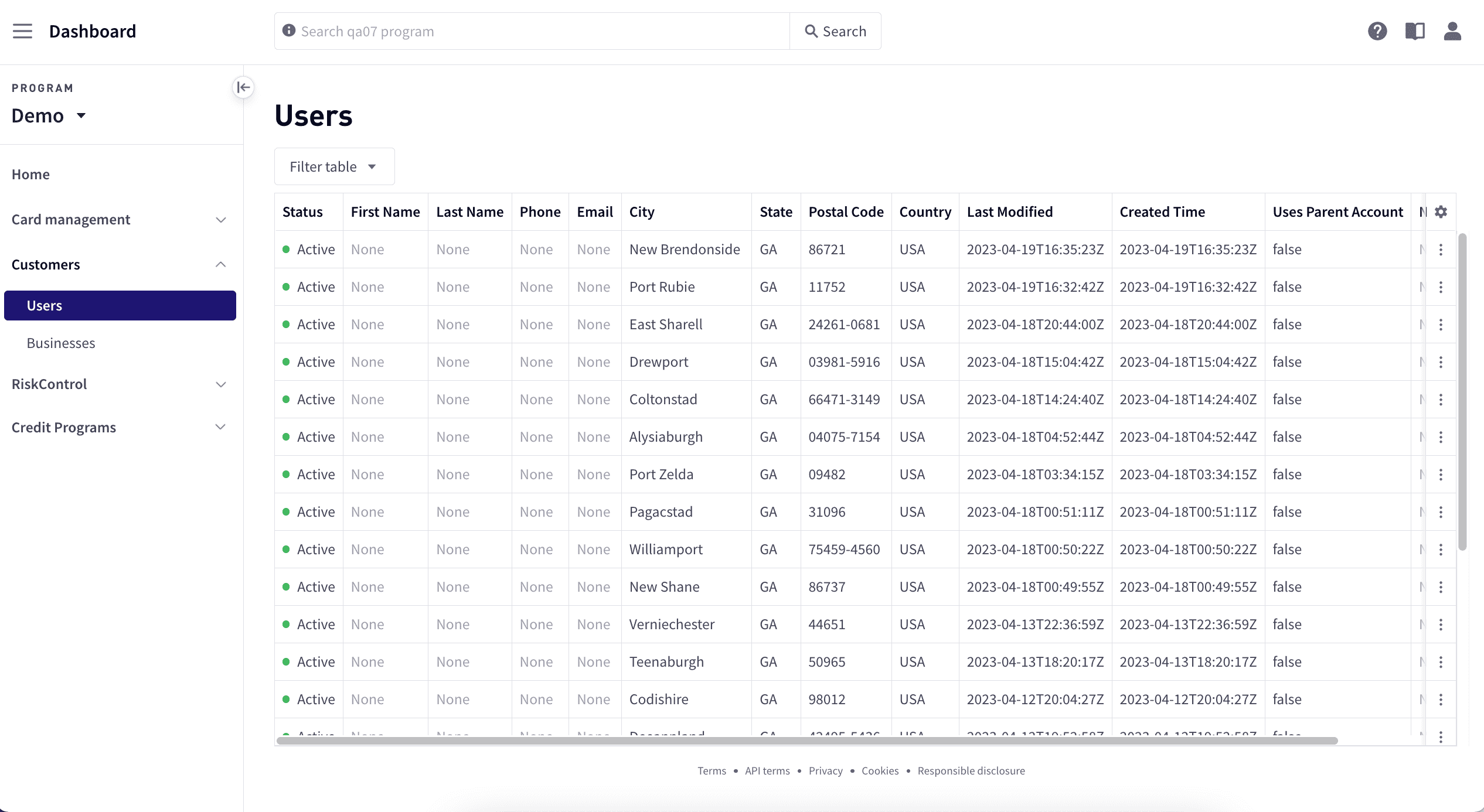
In Users you can manage users and cards, including:- View users and user information.
- Modify user status.
- Create cards from card products.
- View cardholders’ card information.
- Manage cards by terminating, locking, or replacing cards.
- View user or card transactions, history, notes, and transitions.
- Initiate disputes.
Viewing a list of users
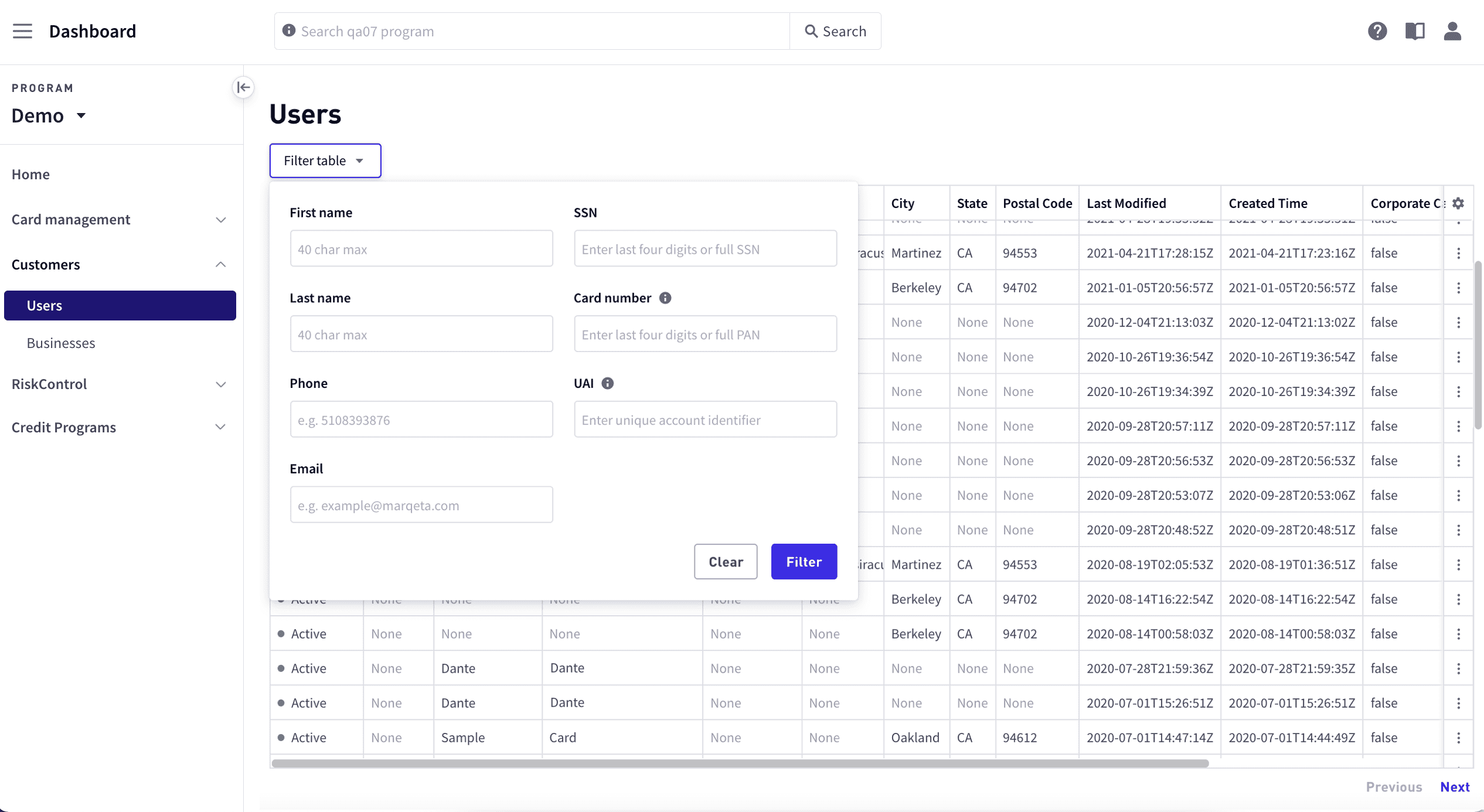
To view a list of users and a summary of user information, select Dashboard in the upper-left corner, then select Customers > Users in the sidebar.
Searching for a user
To find a specific user:Enter the values you want to use for the filter. You can search by first name, last name, phone, email, full SSN or last four digits, full card PAN or last four digits, or the account holder’s UAI.
Setting the columns to display and column order
To customize the column display:Managing user information
To view and manage cardholder information:Select Dashboard in the upper-left corner, select Customers > Users in the sidebar, and select the user.
| Tab | Description |
|---|---|
| User details | User information, such as name, address, status, and forms of information used to validate the user. |
| Cards | The cards associated with this user. |
| Accounts | The accounts associated with this user. |
| Transactions | Transactions for this user. |
| History | Displays a history of changes to the user information. |
| Notes | Displays any notes associated with the user. |
| Transitions | Displays a list of transitions for the user. |
User details
Use the User details tab to view information, including user information, identifications, and velocity and authorization controls. User details are displayed in the User Details tab, which includes User Info, Identifications, and Velocity Controls & Auth Controls tabs.
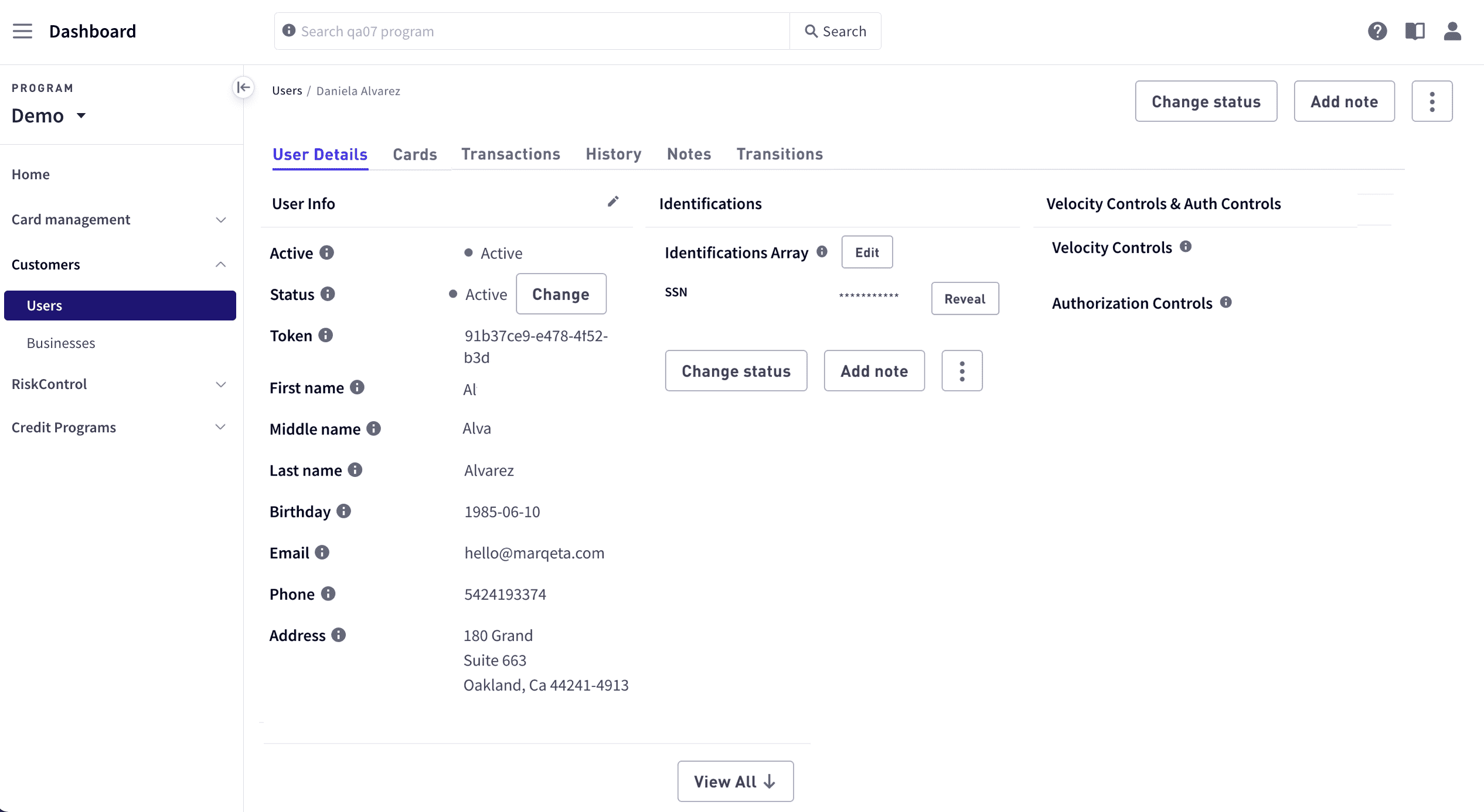
User info
| Field | Description |
|---|---|
| Active | Indicates whether the user is active (Active, Limited) or inactive (Unverified, Suspended, Closed). |
| Status | The user’s status, which determines the user’s capabilities. To change the status, select Change. |
| Token | The user’s unique token. |
| First name | The user’s first name. Required for KYC verification checks. |
| Middle name | The user’s middle name. |
| Last name | The user’s last name. Required for KYC verification checks. |
| A unique and valid email address for the user. | |
| Phone | The telephone number of the primary contact. |
| Address | The user’s address. |
| Honorific | The user’s title, such as Mr., Ms, or Mrs. |
| Uses parent account | If this is a child account, indicates whether the child account shares a balance with the parent account (true) or maintains an independent balance (false). |
| Corporate cardholder | Indicates whether the user also has a corporate card: true if yes, false if not. |
| Company | The user’s company. |
| Nationality | The user’s nationality. |
| IP address | The user’s IP address. |
| API note | A note applied on the business object. |
| Parent token | The parent token for the user, if any. |
| Business token | The business token related to the user, if any. |
| Account holder group token | A token that associates the user with a group. |
| Created | The date and time when the user was created. |
| Last modified | The date and time when the user’s information was last updated. |
| Metadata | Metadata key/value pair, if any. To define metadata, select Add New. |
Identifications
Identifications define the forms of identification used to validate a user. This information is required for KYC checks. To add an identification, select Edit. To reveal an SSN, select Reveal; to conceal the number, select Hide.| Field | Description |
|---|---|
| SSN | The user’s social security number. |
| Passport number | The user’s passport number. |
| Passport expiration date | The date when the user’s passport expires. |
| ID card number | The user’s ID card number. |
| ID card number expiration | The date when the user’s ID card expires. |
Velocity controls & auth controls
A velocity control is a type of control that limits user spending, such as how much a user can spend or the number of transactions they can make within a given time interval. An authorization control is a type of spend control that limits where users can transact. You can configure authorization controls to limit spending at a single merchant or a group of merchants. Authorization controls can apply to a single user, all users associated with a particular card product, or all users in your program.| Field | Description |
|---|---|
| Active | Indicates whether the velocity control is active: true, if active; false if inactive. |
| Token | The unique identifier for the velocity control. |
| Name | The name of the velocity control. |
| Amount limit | The maximum amount of money that can be spent within the time period defined in the velocity_window field. |
| Usage limit | The maximum number of times the card can be used within the time period defined in the velocity_window field. |
| Velocity window | The time period to which the amount limit and usage limit values apply: DAY, WEEK, MONTH, LIFETIME, TRANSACTION. |
| Approvals only | Indicates whether only approved are subject to control. |
| Include purchases | Indicates whether purchases are included. |
| Include withdrawals | Indicates whether withdrawals are included. |
| Include transfers | Indicates whether transfers are included. |
| Include cashback | Indicates whether cashback is included. |
| Currency code | The currency code. |
| Field | Description |
|---|---|
| Merchant ID | The unique identification number of a merchant. |
| Merchant Category Code | A single MCC (Merchant Category Code). Identifies the type of goods or services provided by the merchant. |
| Merchant Category Code Group | Token identifying a group of MCCs. |
| Field | Description |
|---|---|
| Card product token | A card product token to apply the authorization control to all users holding active cards associated with the card product. |
| User token | A user token to apply the authorization control to a single user. |
Account balance
The account balance values show current balances for the user, including the available balance, pending credits, and ledger balance.| Field | Description |
|---|---|
| Available balance | The available balance shows the ledger balance minus any authorized transactions that have not yet cleared. This is the cardholder’s purchasing power. If you are using JIT Funding, this balance is usually 0.00. |
| Credit balance | Not currently in use. |
| Pending credits | Pending credits shows the ACH loads that have been accepted, but for which the funding time has not yet elapsed. |
| Ledger balance | When using standard funding, the ledge balance shows the funds that are available to spend immediately, including any authorized transactions that have not yet cleared. When using Just-in-Time (JIT) Funding, this shows the authorized funds that are currently on hold, but have not yet cleared. |
Editing user info
To edit a user’s information:Select Dashboard in the upper-left corner, select Customers > Users in the sidebar, and then select the user.
Select the Edit button (pencil icon) in the upper-right corner of the information pane and enter values for any of the fields.
Changing user status
A user’s status can be Active, Limited, Unverified, Suspended, or Closed. Both Active and Limited indicate an Active status. To change a user’s status:Select Dashboard in the upper-left corner, select Customers > Users in the sidebar, and then select the user. To search for a user, select Filter.
Warning
If a user’s account is Inactive, their cards will not authorize transactions, even if the cards themselves are Active. If the user is a secondary user, there will also be a Parent Account link pointing back to the primary user.
Cards
The Cards tab lists all cards that are associated with the user account, and all of its child accounts. Each line item shows the last four digits of the card number, the name on the card, and the payment instrument type (physical stripe, chip, or virtual).
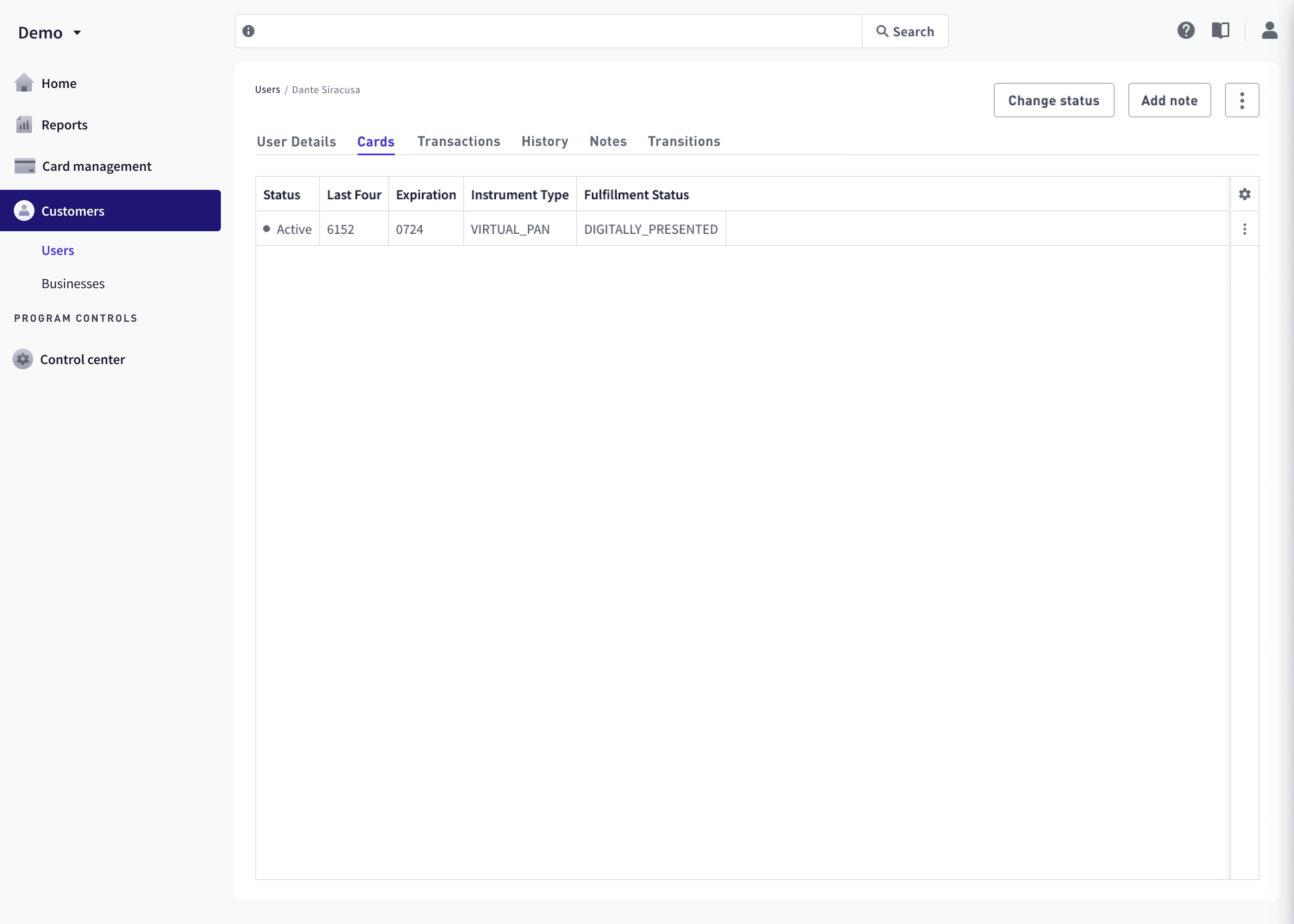
| Tab | Description |
|---|---|
| Card details | User information, such as name, address, status, and forms of information used to validate the user. |
| Card transactions | Transactions for this user. |
| History | Displays a history of changes to the user information. |
| Card transitions | Displays a list of transitions for the user. |
| Digital wallet tokens | Displays a list of digital wallet tokens for the user, if any. |
Creating a card
You can create a new card for a user by selecting a current card product. When you create a card, you can set card controls involving MCCs on the allow list, usage types, velocity controls, and amount limits. To create a card:Select Dashboard in the upper-left corner, select Customers > Users in the sidebar, and then select the user.
In Manual create card, specify any optional controls for the card. For details, see Manually creating a card.
Viewing card details
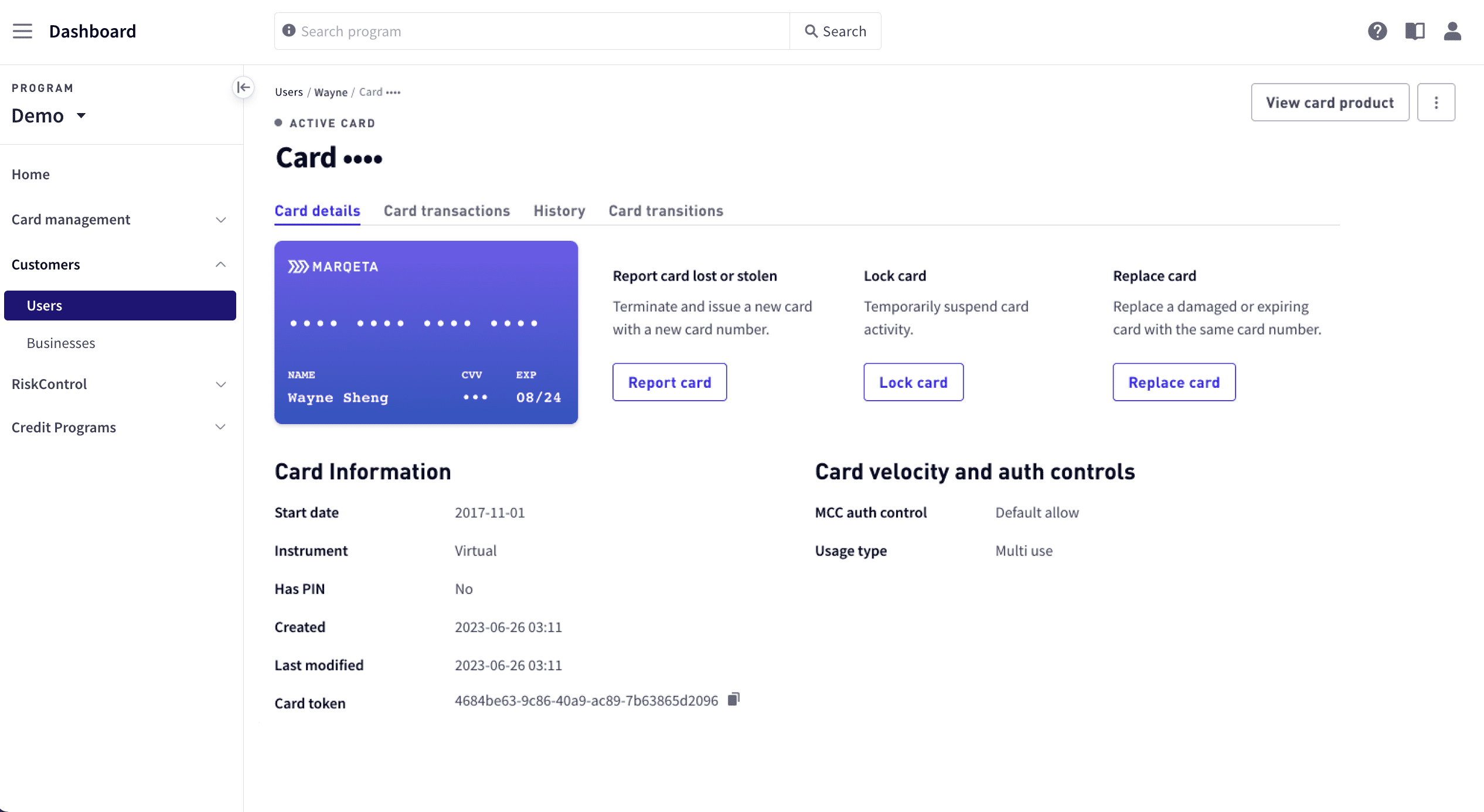
To view card details:Select Dashboard in the upper-left corner, select Customers > Users in the sidebar, and then select the user.
Card information
View detailed card information, including the state of the card. You can also expand to view all details and change the card status here.| Field | Description |
|---|---|
| Start date | The start date for the card. |
| Instrument | The type of card: Physical or Virtual. |
| Has PIN | Indicates whether the card has a PIN. |
| Created | The date and time when the card was created. |
| Last modified | The date and time when the card was last modified, in UTC. |
| Card token | The card’s unique identifier. |
| Field | Description |
|---|---|
| Method | The shipping company and shipping service level, such as USPS_REGULAR or FEDEX_EXPEDITED. |
| Processing time | The time required to process the card. |
| Card fulfillment status | Status of the card related to order and delivery: ISSUED, ORDERED, REJECTED, SHIPPED, DIGITALLY_PRESENTED. |
| Name line 1 | The first line of personalized text printed on the face of the card. |
| Name line 2 | The second line of personalized text printed on the face of the card. |
| Care of line | Adds the specified value as a C/O (care of) line to the mailing carrier. |
| Recipient address | Address to which the card will be shipped. |
| Return address | Address to which card will be returned if shipping fails. |
| Field | Description |
|---|---|
| MCC auth control | Indicates the auth control for the card. |
| Usage type | Indicates the usage type for the card: multi use or single use. |
Card transactions
The Transactions tab shows all of the transactions for a specific card. To view transactions for a specific card:Select Dashboard in the upper-left corner, select Customers > Users in the sidebar, and then select the user. To search for a user, select Filter table.
Select the Card transactions tab to view information on transactions for specific cards. Use the Filter table options to search for a specific transaction. For details on transaction fields for cards, see Transactions for users.
Select Dashboard in the upper-left corner, select Customers > Users in the sidebar, and then select the user. To search for a user, select Filter.
Card history
Use History to view the audit log associated with a card. To view a card’s history:Select Dashboard in the upper-left corner, select Customers > Users in the sidebar, and then select the user. To search for a user, select Filter table.
Card transitions
Use the Transitions tab to view all transitions associated with a card. To view a card transition:Select Dashboard in the upper-left corner, select Customers > Users in the sidebar, and then select the user. To search for a user, select Filter table.
Digital wallet tokens
Use the Digital Wallet Tokens tab to view details of and manage transitions for all the digital wallet tokens associated with a user. The Digital Wallet Tokens tab displays the last four digits of the PAN with which the tokens are associated.About digital wallet token transitions
As with other objects on the Marqeta platform, such as users and cards, digital wallet tokens can be independently transitioned between states. The two most common use cases for transitioning a digital wallet token are token activation (such as yellow flow activation) and token termination (if a user has reported to you that their device or account was lost or stolen, for example). Token activation is primarily handled automatically, but the ability to manually activate a token is a requirement of both Visa and Mastercard. You can meet this requirement through your own service applications using Marqeta’s APIs, or through the Marqeta Dashboard. Tokens can be activated through automatic mechanisms and can be terminated by the user directly on their phone or by “find my device” features. You will be notified through webhooks of these changes.Warning
Wallet tokens will remain active unless explicitly terminated, even if the underlying card state is changed.
| Field | Description |
|---|---|
| Status | The current state of the digital wallet token: active, requested, suspended, or terminated. |
| Token PAN | The last four digits of the digital wallet token PAN. This is the number that will typically appear on a user’s receipt. |
| Token reference ID | The digital wallet token reference identifier. This field is used for troubleshooting and is not used for payments. |
| PAN reference ID | The PAN reference identifier. This field is used for troubleshooting and is not used for payments. |
| Wallet name | The name of the wallet with which the digital wallet token is associated. For example, Apple Pay. |
| Device | The device with which the digital wallet token is associated. For example, Mobile Phone. |
| Last modified | The date and time when the digital wallet token was last modified, in UTC. |
| Quick actions | Select the vertical ellipses in the rightmost field to access the quick actions menu. - View details: Select View details to view the digital wallet token details. See Digital wallet token details - Lock: Select Lock to suspend the digital wallet token. The token moves to the suspended state, and the token details are displayed. You can lock a token when it is in the active state. - Terminate: Select Terminate to permanently disable the digital wallet token. The token moves to the terminated state. - Activate: Select Activate to enable the digital wallet token that is currently in a pending status. The token moves to the active state, and the token details appear. |
In Details, you can see additional details about the request and the device, including why a token request might have been declined. You can also lock, terminate, or activate a digital wallet token on the Token details tab in lieu of the quick actions. The token details tab displays information about the digital wallet token in two sections: Token summary and Token details. The Token summary section provides the following information:
| Field | Description |
|---|---|
| Device | The device with which the digital wallet token is associated. For example, Mobile Phone. |
| Device ID | The unique device identifier as defined by the digital wallet, if applicable. For Apple Pay, this is the SEID. It appears for Apple Pay, Google Wallet, and Samsung Wallet, but it does not appear for e-commerce/card on file tokenization. |
| Phone number | The phone number associated with the device being tokenized. This may be the full number or only last four digits. This is not provided for e-commerce tokenization or if there is no phone number associated with the device (a mobile phone with no SIM installed for example). |
| Wallet name | The name of the wallet with which the digital wallet token is associated. For example, Apple Pay. |
| Token PAN | The last four digits of the digital wallet token PAN, which the user will frequently see on receipts and is visible within the digital wallet. |
| Token expiration | The expiration date of the digital wallet token. |
| Wallet provider risk score | The digital wallet provider’s decision as to whether the digital wallet token should be provisioned: red, yellow, green. See Token approval process. |
| Wallet provider PAN source | The source of the PAN used by the digital wallet provider, such as a mobile banking application. |
| Wallet provider reason score | The reason for the digital wallet provider’s provisioning decision. |
| Field | Description |
|---|---|
| Token reference ID | The digital wallet token reference identifier. For Mastercard, this field is blank until the tokenization process is completed. It is not available while the status is requested. |
| PAN reference ID | The PAN reference identifier. For Mastercard, this is blank until the tokenization process is completed. It is not available while the status is requested. |
| Token fulfillment status | The fulfillment state of the digital wallet token: red, yellow, green, provisioned, rejected. |
| Issuer eligibility decision | The Marqeta platform’s decision as to whether the digital wallet token should be provisioned. 0000 indicates that the token should be provisioned without any further steps. |
| Time created | The date and time when the digital wallet token was created, in UTC. |
| Last modified | The date and time when the digital wallet token was last modified, in UTC. Expressed in UTC. |
| Language code | The language code for the digital wallet token. For example, eng. |
Changing card status
You can set a card’s status to Active, Terminated, or Suspended. To change a card’s status:Select Dashboard in the upper-left corner, select Customers > Users in the sidebar, and then select the user. To search for a user, select Filter table.
Select the vertical ellipses to the right in the row of the card to report and select Change Status.
Select the new state, select a reason for the change from the dropdown list, and add any additional notes.
Locking a card
Locking a card temporarily suspends card activity. To lock a card:Select Dashboard in the upper-left corner, select Customers > Users in the sidebar, and then select the user. To search for a user, select Filter table.
Replacing a card
When replacing a damaged or expiring card with the same card number, the current card remains active until the new card is activated, at which point the current card is terminated. To replace a damaged or expiring card:Select Dashboard in the upper-left corner, select Customers > Users in the sidebar, and then select the user. To search for a user, select Filter table.
Reporting a card lost or stolen
Reporting that a card is lost or stolen terminates the card and reissues a new card with a new PAN, which is digitally available (if virtual) or mailed to the user (if physical). The physical card will be sent to the recipient address on file. Terminated cards cannot be used or reactivated. To report a card lost or stolen:In Dashboard > Customers > Users, select the user. Use the Filter, Columns, or Reset buttons to find the card, if necessary.
Accounts
Use the Accounts tab to view the accounts associated with a user. To view a user’s accounts:Select Dashboard in the upper-left corner, select Customers > Users in the sidebar, and then select the user.
| Field | Description |
|---|---|
| Status | The current account status. |
| Account Number | The account number. |
| Routing Number | The account routing number. |
| Creation Date | The date that the account was created. |
| Account Token | The account token. |
Transactions
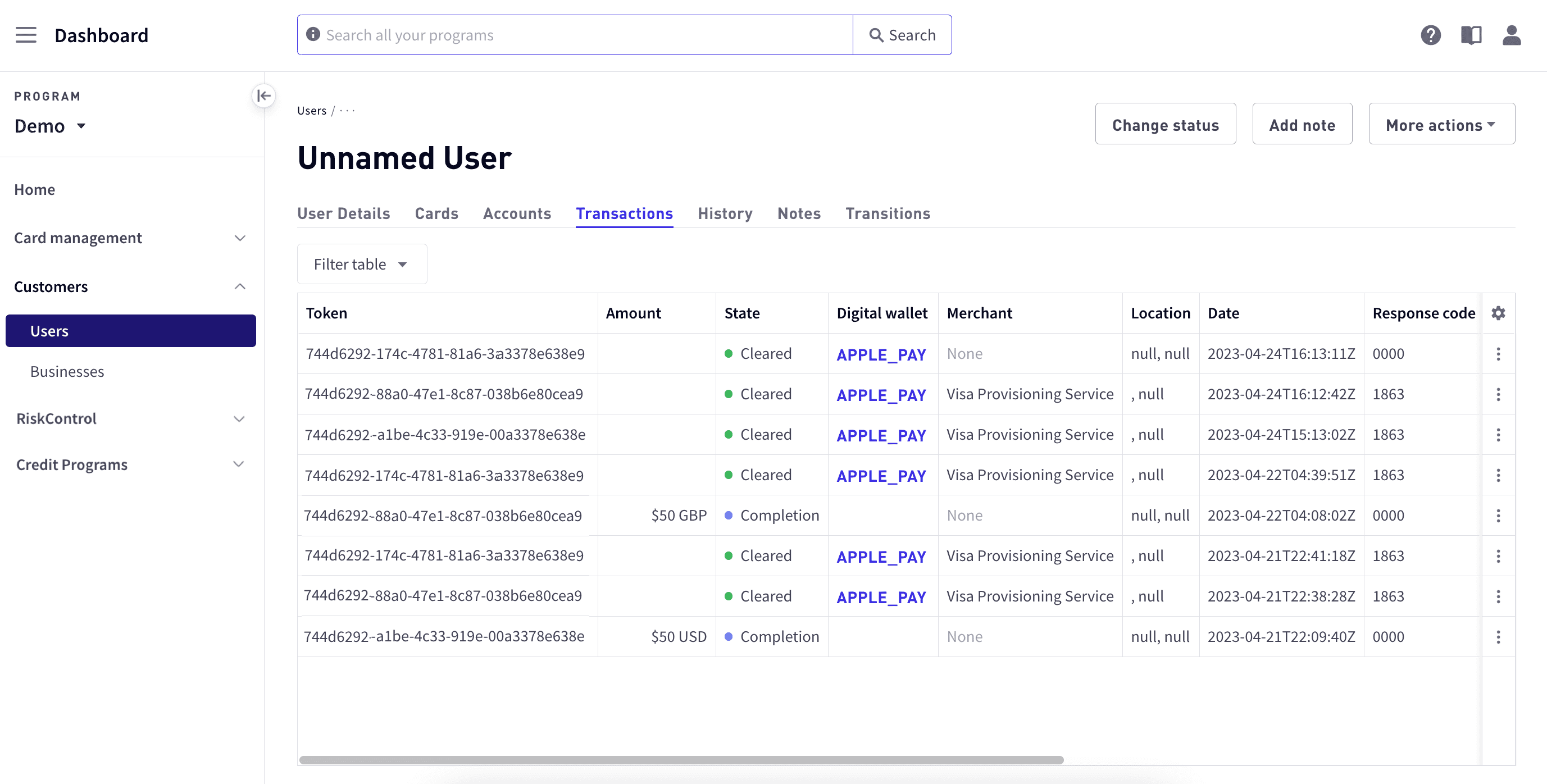
Use the Transactions tab to view all transactions associated with a user. To view the transactions for a user:Select Dashboard in the upper-left corner, select Customers > Users in the sidebar, and then select the user.
Select Filter table to search for a transaction or Modify columns to display more columns.
| Field | Description |
|---|---|
| Token | Unique identifier of the transaction, formatted as a UUID. |
| Amount | The transaction amount. |
| State | The transaction state: PENDING, CLEARED, COMPLETION, DECLINED, ERROR, ALL |
| Digital Wallet | Indicates if a digital wallet was used for the transaction. If so, a link to the digital wallet token is provided. |
| Merchant | The merchant involved in the transaction. |
| Location | The location of the transaction. |
| Date | Date and time of the transaction. |
| Card Acceptor Type | The card acceptor type, such as the MID, MCC, or MCC group. |
| Response Code | The response code for the transaction. See transaction response codes. |
| Response Memo | A memo related to the transaction response, if any. |
| Type | The transaction type: authorization, gpa.credit.authorization, gpa.credit, authorization.reversal, gpa.credit.authorization.reversal. |
| Settlement Date | Date and time when funds were moved for a transaction (for example, in the case of a refund, when funds were credited to the user). |
| Approval Code | The unique ID assigned to a given authorization. Is printed on the receipt at point of sale. |
| Network | The card network used to complete the transaction (DISCOVER, MASTERCARD, PULSE, VISA, or MARQETA). |
| Subnetwork | The subnetwork used to complete the transaction. Possible values include the following: - VISANET – VisaNet signature-based transactions.- VISANETDEBIT – VisaNet Debit PIN-based transaction.- VISAINTERLINK – Visa Interlink PIN-based transactions.- VISAPLUS – ATM withdrawals on Visa.- MAESTRO – PIN-based transactions on Mastercard.- CIRRUS – ATM withdrawals on Mastercard.- MASTERCARDDEBIT – Signature-based transactions on Mastercard.- GATEWAY_JIT – Gateway JIT Funding transactions.- MANAGED_JIT – Managed JIT Funding transactions or for transactions that occur while Commando Mode is enabled. |
| Request Amount | Used for clearing/settling transactions to compare to the original authorization amount. |
| Duration | Duration of the transaction on Marqeta servers, in milliseconds. |
| AVS | Address Verification System (AVS) data provided by the merchant. |
| Verification Result | The result of the verification. |
| Currency Code | The three-digit ISO 4217 currency type of the transaction. |
| POS | Information about the point of sale, such as how the card was presented. |
| Card Security Code Verification | The verification check performed on the card’s security code: - CVV1 – the security code stored in the magnetic stripe on the card.- CVV2 – the security code printed on the card.- ICVV – the security code stored on the chip of the card.- DCVV – a dynamic security code used in some contactless payments when a card or device is tapped against the card reader. |
| Cardholder authentication data | Information about additional authentication performed for e-commerce transactions. For example, a transaction participant (such as the card network) can request additional verification during the transaction process, such as the cardholder’s name or date of birth. |
| Standin Approval By | Which party approved the transaction requiring stand-in processing or Commando Mode. |
| Transaction Metadata | Merchant-provided metadata related to the transaction, including details about lodging and transit-related purchases. |
| Acting User Token | Unique identifier of the user who conducted the transaction. The user can be a child user configured to share its parent’s account balance. |
| User Token | Unique identifier of the user who owns the account that funded the transaction; subsequent related transactions retain the same user_token, even if the card used to complete the transaction moves to another user. |
| Card Token | Unique identifier of the card. Useful when a single account holder has multiple cards. |
| Preceding Related Transaction Token | Unique identifier of the preceding related transaction, which is useful for identifying the temporary transaction completed by the current transaction. For example, authorization, a temporary transaction type, precedes and is completed by authorization.clearing, a final transaction type. In this case, the authorization token is returned with this field. For which transaction types are temporary or final, see Transaction Events in Event Types. |
| Incremental Authorization Transaction Tokens | Incremental authorization transaction tokens, if any. |
| Program Transfer | Information about a program transfer. |
| Fee Transfer | The fee transfer, if any. |
| Peer Transfer | The peer transfer, if any. |
| Offer Orders | Offer orders, if any. |
| Rewards | Rewards, if any. |
| Polarity | Indicates whether the transaction is credit or debit. |
| Real Time Fee Group | Information about a real-time fee group. |
| Electronic Commerce Indicator | The level of verification performed. |
| Verification Value Created By | The transaction participant who determined the verification result. |
| Acquirer Fee Amount | The amount of the acquirer fee. Account holders are sometimes charged an acquirer fee for card use at ATMs, fuel dispensers, etc. |
| Issuer Interchange Amount | The interchange amount from the issuer. |
| Network Original Amount | Amount of the transaction in the currency in which it originated. |
| Network Original Currency Code | Currency code of the transaction in which it originated. |
Transaction details
The Transaction details page provides information that you can use to investigate the details of a transaction. You may need to resolve situations such as why a transaction that is missing information was approved, why a transaction was declined, or to respond to a customer request. For additional information on how to use the transaction details, see Investigating Transactions in the Dashboard. To view transaction details, select the transaction row displayed in the Transactions tab.
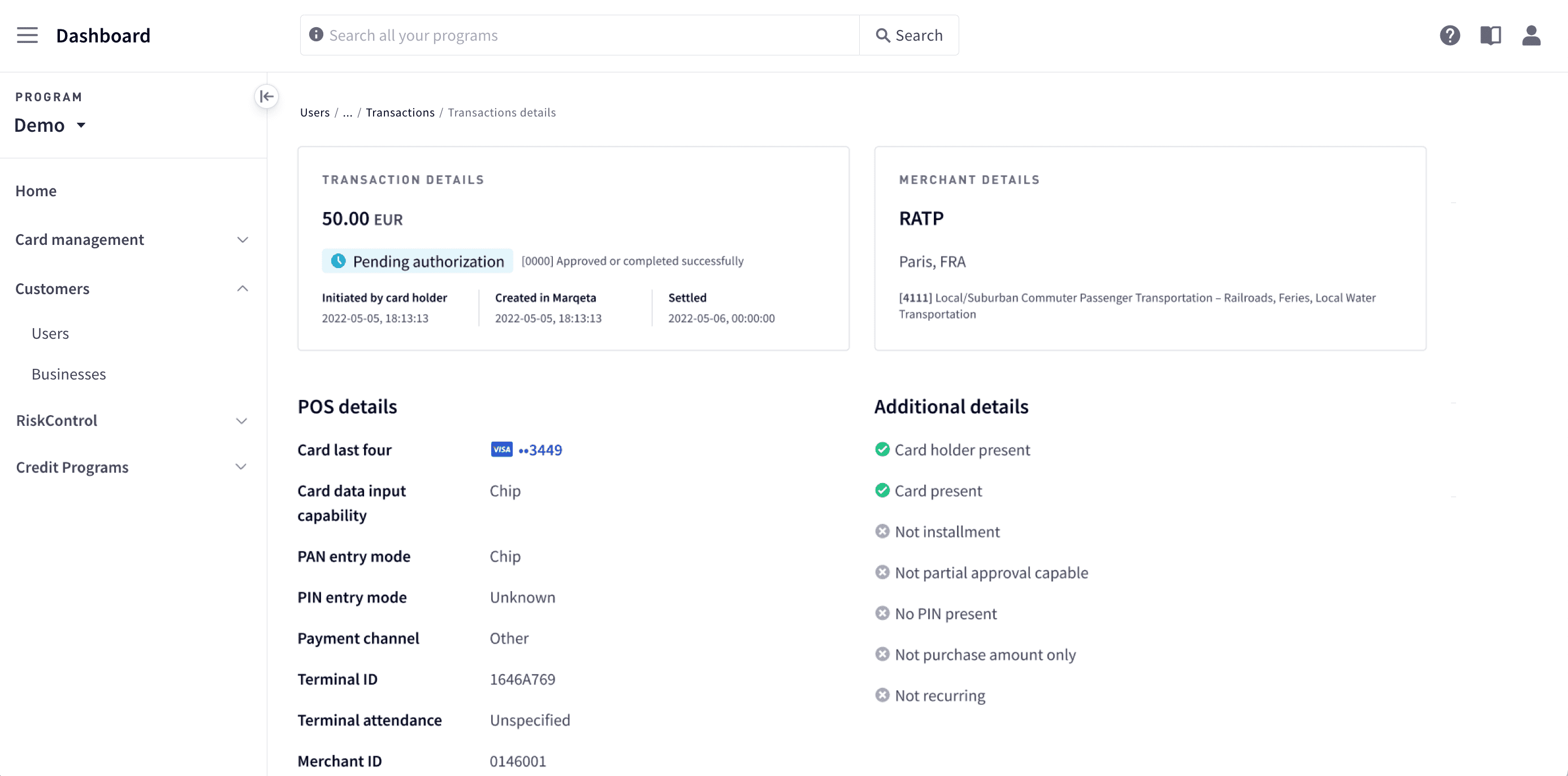
- Transaction and merchant summaries
- Related transactions
- POS
- JIT Funding
- Digital wallet token and device
- Amount
- Tokens
Transaction and merchant summaries
The TRANSACTION DETAILS and MERCHANT DETAILS panes provide summary information about the current transaction. The TRANSACTION DETAILS pane shows the amount and currency along with the current state of the transaction and other transaction details. The MERCHANT DETAILS pane provides summary information about the merchant.

Related transactions
This section lists other transactions that are related to the current transaction along with this information:

| Field | Description |
|---|---|
| Created time | Date and time when the Marqeta platform created the transaction entry, in UTC format. |
| State and type | Current state of the transaction: PENDING, CLEARED, COMPLETION, DECLINED, ERROR. For more information about the state field, see The transaction lifecycle. |
| Description | A description of the transaction. |
| Response memo | Information on the outcome of the attempted transaction type. |
| Amount | The amount of the transaction. |
POS details
Use the information in this section to investigate the details about the point of sale (POS) for the transaction.| Field | Description |
|---|---|
| Card last four | The last four digits of the card used in the transaction. |
| Card data input capability | How the terminal accepts card data: UNKNOWN, NO_TERMINAL, MAG_STRIPE, MAG_STRIPE_CONTACTLESS, MAG_STRIPE_KEY_ENTRY, CHIP, CHIP_CONTACTLESS, CHIP_MAG_STRIPE, CHIP_MAG_STRIPE_KEY_ENTRY, KEY_ENTRY, OCR, MICR, BAR_CODE. |
| PAN entry mode | Method used for capturing the card PAN during the transaction: UNKNOWN, MANUAL, MAG_STRIPE, MAG_STRIPE_CONTACTLESS, BAR_CODE, OCR, MICR, CHIP, CHIP_CONTACTLESS, CARD_ON_FILE, CHIP_FALLBACK, OTHER |
| PIN entry mode | Whether the card acceptor or terminal can capture card PINs: UNKNOWN, TRUE, FALSE, DEFECTIVE This field does not indicate whether a PIN was entered. |
| Payment channel | Channel from which the transaction was originated: OTHER, ATM, ECOMMERCE, MAIL, PHONE, MOTO |
| Terminal ID | Card acceptor or terminal identification number. |
| Terminal attendance | Whether the card acceptor/terminal was attended: UNSPECIFIED, ATTENDED, UNATTENDED, NO_TERMINAL. |
| Merchant ID | The merchant identifier used to identify the merchant. |
| Cross border fee | Cross-border fee charged by the network and paid for by the issuer. Does not impact account balance. |
| Interchange fee | Fee charged per transaction by the card network. Does not impact account balance. |
- Cardholder present
- Card present
- Not installment
- Not partial approval capable
- No PIN present
- Not purchase amount only
- Not recurring
JIT Funding
This section provides details about a JIT Funding transaction and the user response. If the Funding type isProgram gateway, the transaction is a JIT transaction.
| Field | Description |
|---|---|
| Funding type | Funding type of the funding source. For JIT Funding: Program gateway. |
| Method | The funding action required. For example, hold funds, release funds, and capture funds. See JIT Funding object. |
| Amount | The amount to hold, reverse, or clear. |
| Timed out | Indicates whether the funding request timed out. |
| Response code | Four-digit code corresponding to the outcome of the attempted transaction type: 0000 – passed; 0001 – did not pass |
| Ledger balance | Authorized funds that are currently on hold, but not yet cleared. |
| Available balance | Ledger balance minus any authorized transactions that have not yet cleared. Also known as the cardholder’s purchasing power. When using JIT Funding, this balance is usually equal to $0.00. |
| Cached balance | Not currently in use. |
| Credit balance | Not currently in use. |
| Pending credits | ACH loads that have been accepted, but for which the funding time has not yet elapsed. |
| <your_organization> response | The response to the JIT Funding request from your organization. |
| Marqeta response | The response to the JIT Funding request from Marqeta. |
| Field | Description |
|---|---|
| Acquirer institution country | Country code of the merchant’s financial institution. |
| Acquirer institution ID code | Identifier code of the merchant’s financial institution. |
| Acquirer reference data | The acquirer reference number, a 23-digit string. |
| Acquirer retrieval reference number | Retrieval reference number of the merchant’s financial institution. |
| Acquirer system trace audit number | System trace audit number of the merchant’s financial institution. |
| Network reference ID | Network-assigned unique identifier of the transaction. Useful for settlement and reconciliation. |
| Transaction approval code | Unique identifier assigned to an authorization, printed on the receipt at the point of sale. |
Digital wallet token
This section provides digital wallet token information for the transaction.Note
This section is displayed only for token e-commerce authorizations and token authorizations transaction types.
| Field | Description |
|---|---|
| State | State of the digital wallet token: REQUESTED, REQUEST_DECLINED, ACTIVE, SUSPENDED, TERMINATED. See Transitioning token states. |
| State reason | Reason why the digital wallet token transitioned to its current state. |
| Fulfillment status | Digital wallet token’s provisioning status; DECISION_RED, DECISION_YELLOW, DECISION_GREEN, REJECTED, PROVISIONED. |
| Issuer eligibility decision | The Marqeta platform’s decision as to whether the digital wallet token should be provisioned. For the following values: - 0000 – The token should be provisioned.- token.activation.verification.required – Provisioning is pending; further action is required for completion.For all other values, check the value of the fulfillment_status field to definitively ascertain the provisioning outcome:0000, cardaccount.verified, card.suspicious, token.activation.verification.required, token.activation-request.decline, card.not.active, invalid.cid, card.expired, card.suspended, cardholder.not.activeNOTE: The invalid.cid value indicates an invalid CVV2 number. |
| Token | Unique identifier of the digital wallet token. To view more information, select the token. |
| Card token | Identifies the card used for the provision request. |
| Token reference ID | The unique identifier of the digital wallet token within the card network. The Token Reference ID is unique at the card network level. |
| PAN reference ID | The unique identifier of the digital wallet token PAN within the card network. This value may vary, depending on the digital wallet. For example, the PAN Reference ID may be different in Apple Pay and Google Wallet for the same digital wallet token. |
| Token requestor ID | Unique numerical identifier of the token requestor within the card network. These ID numbers map to token_requestor_name field values as follows:Mastercard - 50110030273 – APPLE_PAY- 50120834693 – ANDROID_PAY- 50139059239 – SAMSUNG_PAYVisa - 40010030273 – APPLE_PAY- 40010075001 – ANDROID_PAY- 40010043095 – SAMSUNG_PAY- 40010075196 – MICROSOFT_PAY- 40010075338 – VISA_CHECKOUT- 40010075449 – FACEBOOK- 40010075839 – NETFLIX- 40010077056 – FITBIT_PAY- 40010069887 – GARMIN_PAYExample Values: - Mastercard – 50110030273, 50120834693, 50139059239 - Visa – 40010030273, 40010075001, 40010075338, 40010075449, 40010075839, 40010043095 |
| Token requestor name | Name of the token requestor within the card network. NOTE: The list of example values for this field is maintained by the card networks and is subject to change. Example Values: - Mastercard – APPLE_PAY, ANDROID_PAY, SAMSUNG_PAY- Visa – APPLE_PAY, ANDROID_PAY, SAMSUNG_PAY, MICROSOFT_PAY, VISA_CHECKOUT, FACEBOOK, NETFLIX, FITBIT_PAY, GARMIN_PAY |
| Token type | Type of the digital wallet token: MERCHANT_CARD_ON_FILE, DEVICE_SECURE_ELEMENT, DEVICE_CLOUD_BASED, ECOMMERCE_DIGITAL_WALLET |
| Token PAN | Primary account number (PAN) of the digital wallet token. |
| Token expiration | Expiration date of the digital wallet token. |
| Token eligibility decision | Digital wallet’s decision as to whether the digital wallet token should be provisioned: DECISION_RED, DECISION_YELLOW, DECISION_GREEN |
| Field | Description |
|---|---|
| Score | Wallet provider’s decision as to whether the digital wallet token should be provisioned: DECISION_RED, DECISION_YELLOW, DECISION_GREEN. |
| Version | Wallet provider’s risk assessment version. |
Device
This section provides details about the device used for token e-commerce authorizations and token authorizations transaction types.| Field | Description |
|---|---|
| Type | Type of device used for the transaction: MOBILE_PHONE, WATCH, TABLET, MOBILE_PHONE_OR_TABLET, VEHICLE, APPLIANCE, LAPTOP, GAMING_DEVICE, UNKNOWN. |
| PAN source | Source from which the digital wallet provider obtained the card primary account number (PAN): KEY_ENTERED, ON_FILE, MOBILE_BANKING_APP. |
| Phone number | Device’s telephone number. |
| Name | Name of the device. |
| Location | Geographic coordinates of the device in latitude and longitude (DDD.DD/DDD.DD format). Both the longitude and latitude are prefixed with either a + or - symbol, for example: +42.29/-71.07. |
| IP address | Device’s IP address. |
| Language code | Language the device is configured to use. |
| Device score | Score from the device. |
| Reason code | Reason for the wallet provider’s provisioning decision. 01 - Cardholder’s wallet account is too new relative to launch. 02 - Cardholder’s wallet account is too new relative to provisioning request. 03 - Cardholder’s wallet account/card pair is newer than date threshold. 04 - Changes made to account data within the account threshold. 05 - Suspicious transactions linked to this account. 06 - Account has not had activity in the last year. 07 - Suspended cards in the secure element. 08 - Device was put in lost mode in the last seven days for longer than the duration threshold. 09 - The number of provisioning attempts on this device in 24 hours exceeds threshold. 0A - There have been more than the threshold number of different cards attempted at provisioning to this phone in 24 hours. 0B - The card provisioning attempt contains a distinct name in excess of the threshold. 0C - The device score is less than 3. 0D - The account score is less than 4. 0E - Device provisioning location outside of the cardholder’s wallet account home country. 0G - Suspect fraud. |
| Device ID | Identity number of the device. |
| Field | Description |
|---|---|
| Account ID | Wallet provider’s account ID. |
| Email address | Wallet provider’s email. |
| Score | Token score assigned by the digital wallet. |
| Field | Description |
|---|---|
| Street address | The wallet provider’s address. |
| Zip | The wallet provider’s ZIP code. |
Amount
This section provides amount information related to the transaction, including currency conversion information.| Field | Description |
|---|---|
| Amount | Amount of the transaction. |
| Request amount | Merchant-requested amount, including any fees. |
| Original amount | Amount of the transaction in the currency in which it originated. |
| Conversion rate | Conversion rate between the origination currency and the settlement currency. Appears when the transaction currency is different from the origination currency. |
| Original currency code | Currency type of the origination currency. For information on currency codes, see ISO 4217 currency codes. |
Resulting account balances
This section provides details of account balances resulting from the transaction.| Field | Description |
|---|---|
| Ledger balance | When using standard funding: The funds that are available to spend immediately, including funds from any authorized transactions that have not yet cleared. When using Just-in-Time (JIT) Funding: Authorized funds that are currently on hold, but not yet cleared. |
| Available balance | Ledger balance minus any authorized transactions that have not yet cleared. Also known as the cardholder’s purchasing power. |
| Credit balance | Not currently in use. |
| Pending credits | ACH loads that have been accepted, but for which the funding time has not yet elapsed. |
| Impacted amount | Balance change based on the amount of the transaction. |
Tokens
This section lists the tokens related to the transaction. To view more information for a specific token, select the token.| Field | Description |
|---|---|
| User | The top-level user token. In most cases, this is the cardholder who is making the transaction. However, in parent-child setups, this is the parent. |
| Acting user | The token of the cardholder conducting the transaction. This is always the user associated with the card. |
| Transaction identifier | Your organization’s identifier for the transaction. |
| Transaction | The transaction token. |
| Card | The token of the card used for the transaction. |
| Card product | The token of the card product. |
| JIT Funding | The JIT Funding token. |
| Original JIT Funding | The token of the original JIT Funding call if the transaction consists of multiple JIT Funding calls. |
<your_organization> defined fields
This section displays any user or card metadata, such as notification language, defined by your organization.History
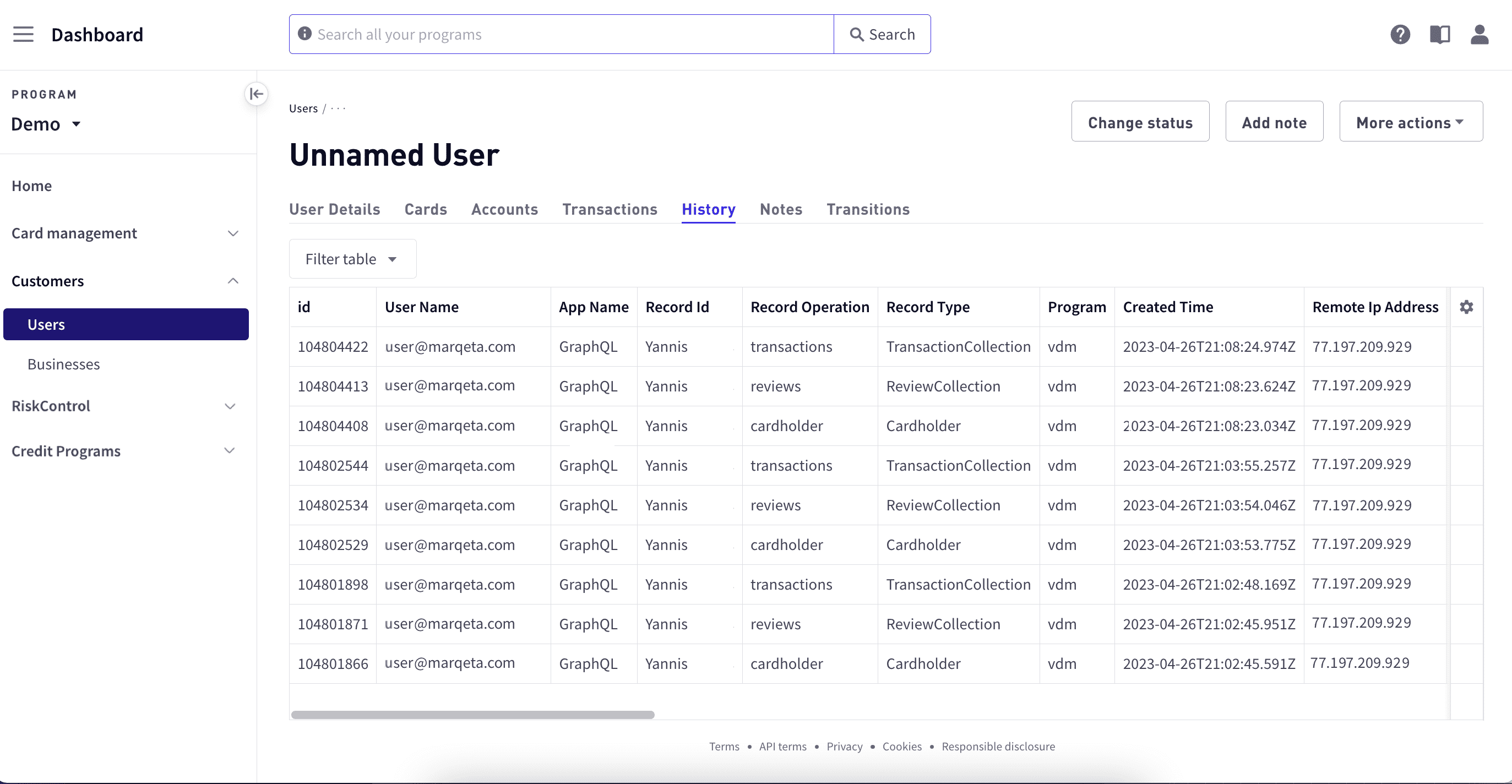
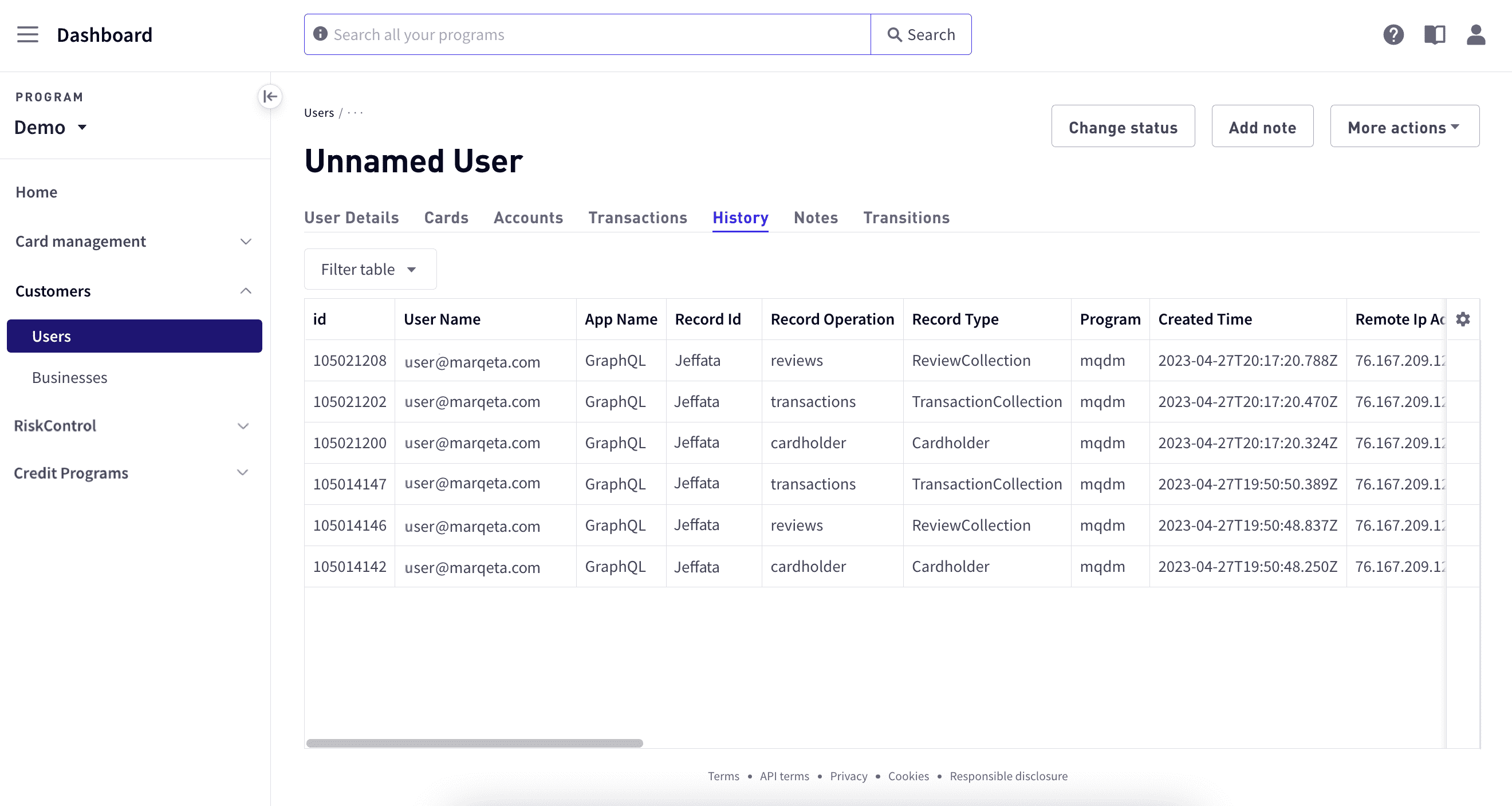
The History tab displays a list of operations that have been performed on the user’s account from within the Marqeta portal. All portal users see the three most recent changes. Managers and Admin users can see additional information. To view all history associated with a user:Select Dashboard in the upper-left corner, select Customers > Users in the sidebar, and then select the user.
Select Filter table to search for a transaction or Modify columns to display more columns.
| Field | Description |
|---|---|
| id | Automatically assigned unique ID for the action. |
| User Name | The user who performed the operation. |
| App Name | The application used to perform the operation. |
| Record Id | The identifier of the record that was affected. |
| Record Operation | The type of operation performed, such as an update. |
| Record Type | The type of record. |
| Program | The program short code. |
| Created Time | The time when the action was created. |
| Remote Ip Address | The remote IP address where the action was generated. |
| User Role | The role of the user who performed the operation. |
| Http Status Code | The status code returned by the action. |
| Http Params | The parameters associated with the request, such as {"first_name":"test","last_name":"test"}. |
| Event Type | The type of event. |
| App Server Name | The application server that generated the action. |
| Http Path | The HTTP path, such as /changepassword or /businesses/search. |
| Http Method | The http method, such as PUT or POST. |
| Old Value | The value before the action. |
| New Value | The value after the action. |
| Notes | Notes related to the action, if any. |
| Extra Info | Additional information about the action, if any. |
Notes
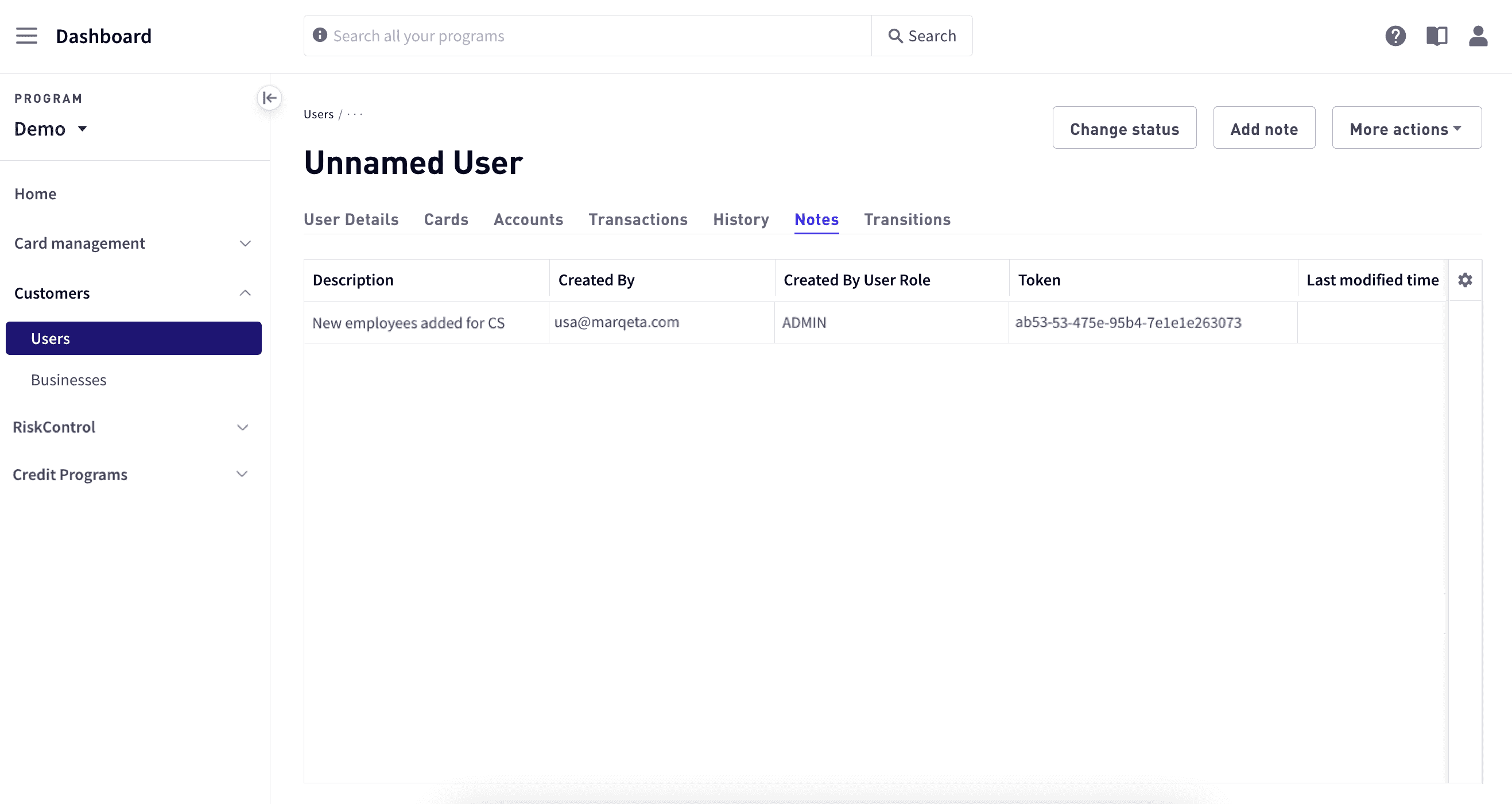
Use the Notes tab to view all the notes associated with a user. To view a user note:Select Dashboard in the upper-left corner, select Customers > Users in the sidebar, and then select the user.
Select Dashboard in the upper-left corner, select Customers > Users in the sidebar, and then select the user.
Transitions
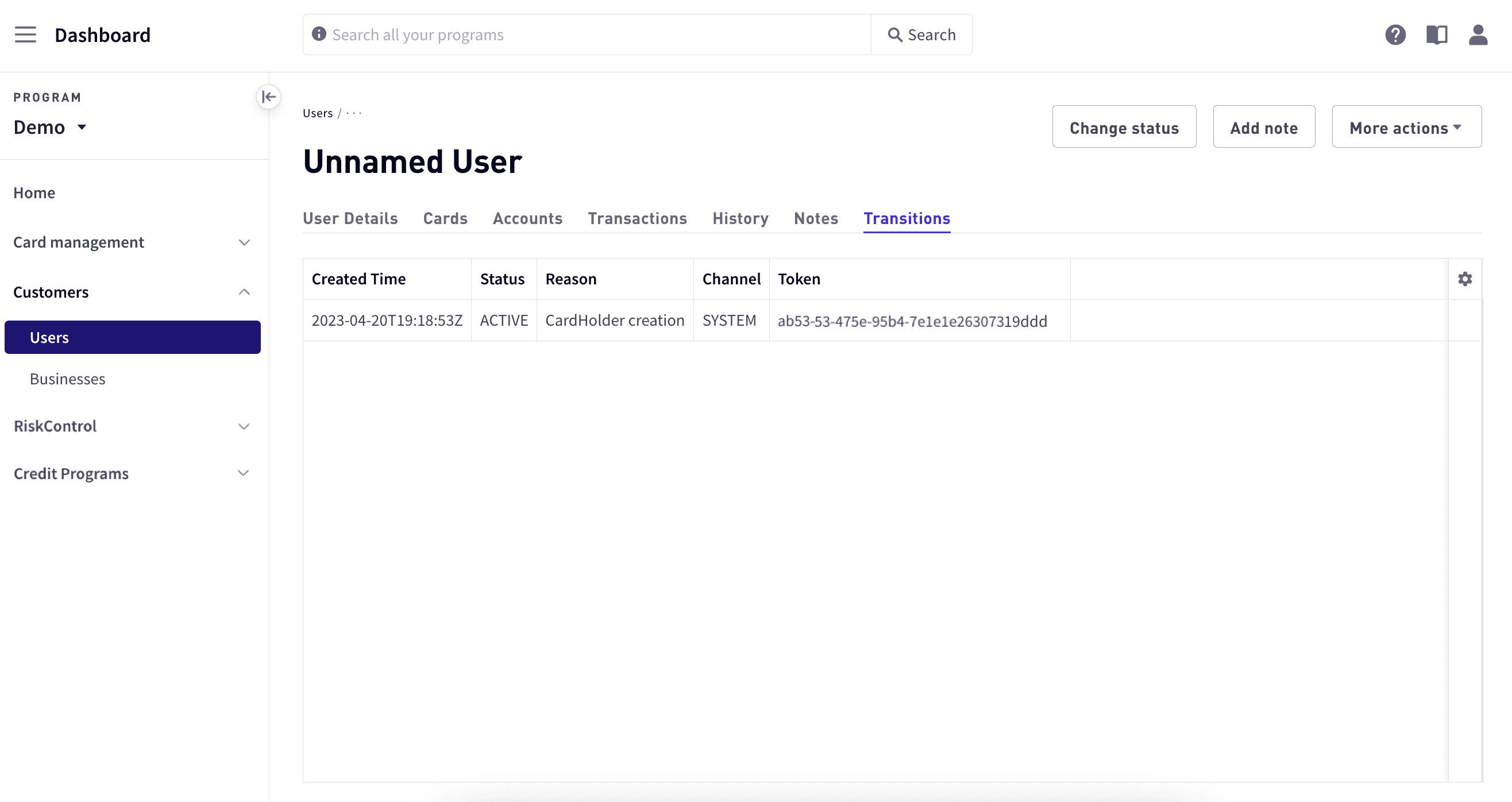
Use the Transitions tab to view all the transitions associated with a user. To view transitions:Select the Transitions tab.
| Field | Description |
|---|---|
| Created Time | The date and time when the transition occurred. |
| Status | The current state. |
| Reason Code | The standard code describing the reason for the transition. |
| Reason | Additional information about the state change. |
| Channel | The mechanism by which the transition was initiated: - ADMIN – Indicates that the card transition was initiated through the Marqeta Dashboard.- API – Indicates that the card transition was initiated by you through the Core API. Use this value when creating a card transition with an API POST request.- FRAUD – Indicates that either Marqeta or the card network has determined that the card is fraudulent.- IVR – Indicates that the card transition was initiated through your Interactive Voice Response system.- SYSTEM – Indicates that the card transition was initiated by Marqeta. For example, Marqeta suspended the card due to excessive failed PIN attempts. |
| Token | The transition token. |
| Last Modified Time | The date and time when the user was last modified, in UTC. |
Businesses
Use Businesses to monitor and manage businesses in your program. You can manage businesses details, children users and cards, transactions, history, notes, and transitions for businesses.
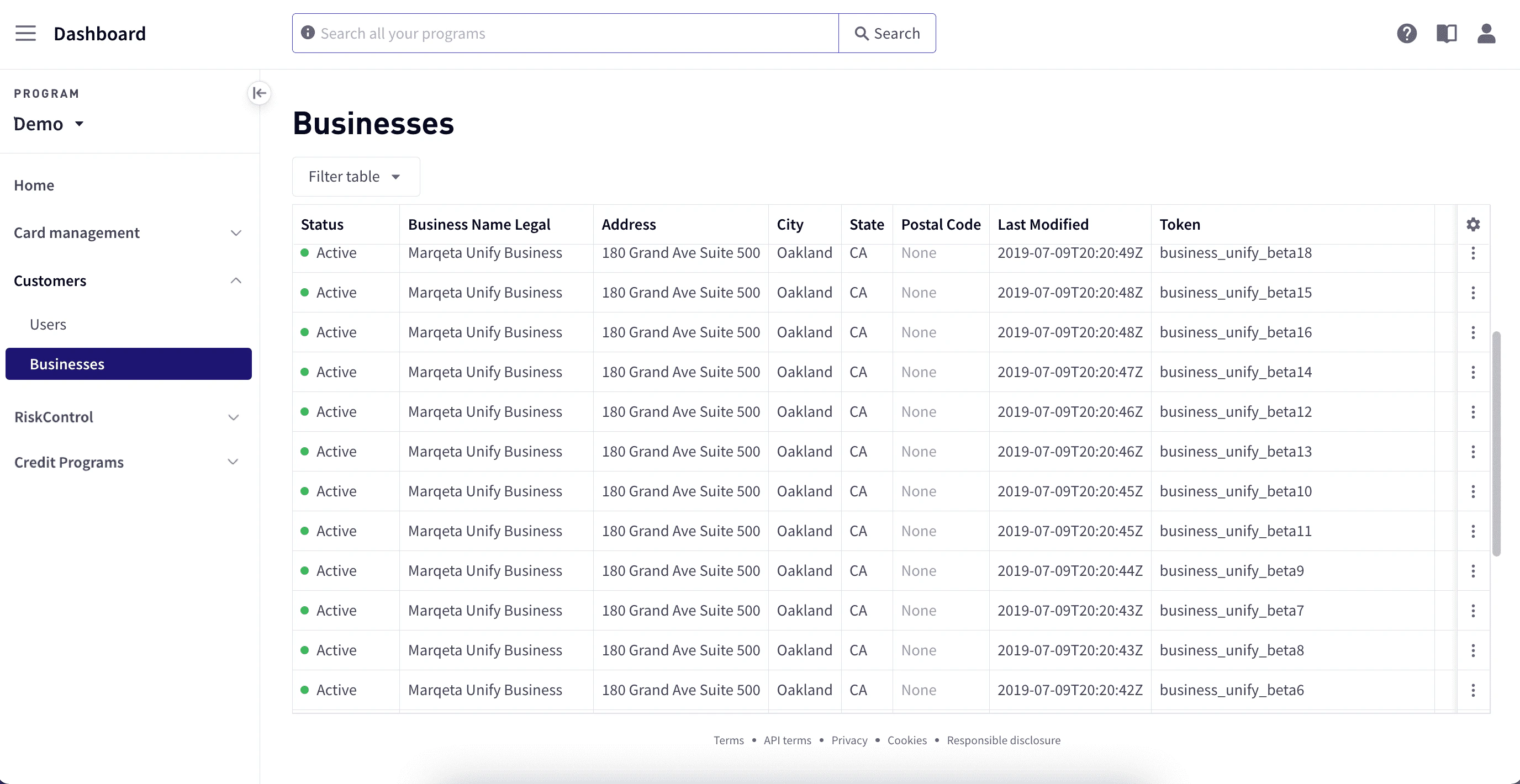
Note
Businesses do not have cards attached directly to them. Businesses have children users, and those children users have cards.
Business details
To view details for a business, select the row for the business who details you want to view to open the Business Details tab. The business details tab displays Business Information, Primary Contacts, and Incorporation Status.
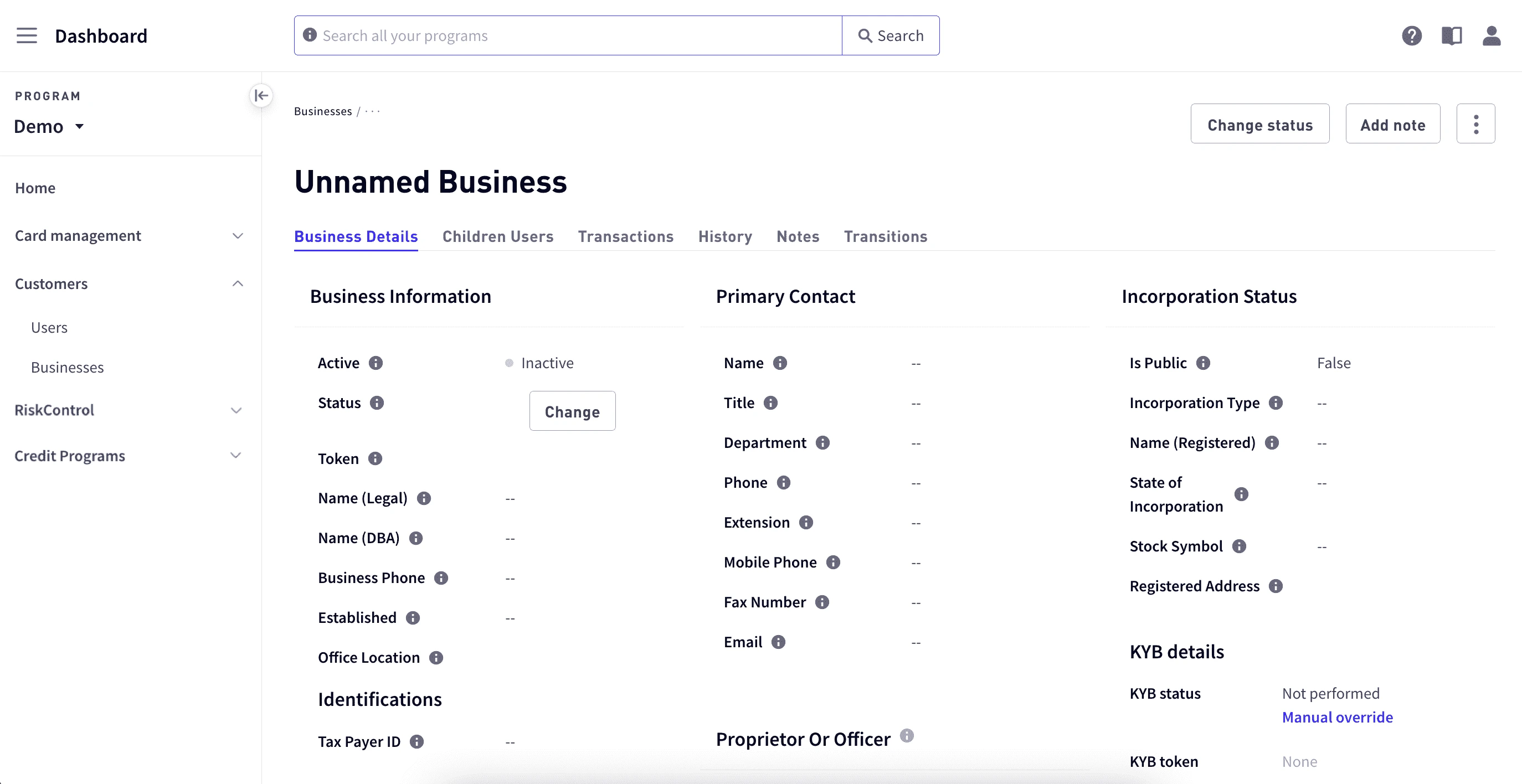
Business information
| Field | Description |
|---|---|
| Active | Indicates whether the business is active (Active, Limited) or inactive (Unverified, Suspended, Closed). |
| Status | The business’ status, which determines the business’ capabilities. To change the status, select Change. |
| Token | The business’ unique identifier. |
| Name (legal) | The business legal name. Required for KYC verification checks. |
| Name (DBA) | The fictitious business name. Required for KYC verification checks. |
| Business phone | The telephone number of the business. Required for KYC verification checks. |
| Business | The date when the business was established. Required for KYC verification checks. |
| Office location | Address of the business office. Required for KYC verification checks. |
Identifications
| Field | Description |
|---|---|
| Taxpayer ID | The business taxpayer ID. |
| Business type | The type of business, for example, B2B (business-to-business) or B2C (business-to-consumer). |
| DUNS number | The Data Universal Numbering System (DUNS) number of the business. |
| Business website | The URL of the business website. |
| On Location Since | The date on which the business office opened in its current location. |
| Business description | General description of the business. |
| Business history | History of the business. |
| International offices | The locations of the business’ offices outside the US. |
| API note | A note applied on the business object. |
| Account holder group token | A token that associates the business with a specific account holder group. |
| IP address | The business’ IP address. |
| Created | The date and time when the business information was created. |
| Last modified | The date and time when the business information was last updated. |
| Metadata | Metadata key/value pair, if any. To define metadata, select Add New. |
Primary contact
| Field | Description |
|---|---|
| Name | The name of the primary contact. |
| Title | The title of the primary contact. |
| Department | The department of the primary contact. |
| Phone | The telephone number of the primary contact. |
| Extension | The telephone extension of the primary contact. |
| Mobile phone | The mobile phone of the primary contact. |
| Fax number | The fax number of the primary contact. |
| The email address of the primary contact. |
Incorporation status
| Field | Description |
|---|---|
| Is Public | Indicates whether the business is privately or publicly held. |
| Incorporation Type | The type of incorporation. Required for verification (KYC) checks. Can be one of the following identification types: LLC, CORPORATION, SOLE_PROPRIETORSHIP, PARTNERSHIP, COOPERATIVE, OTHER |
| Name (Registered) | The name under which the business is registered. |
| State of Incorporation | The state in which the business is incorporated. Required for verification (KYC) checks. |
| Stock Symbol | The business’ stock symbol. |
| Registered Address | The address under which the business is registered. |
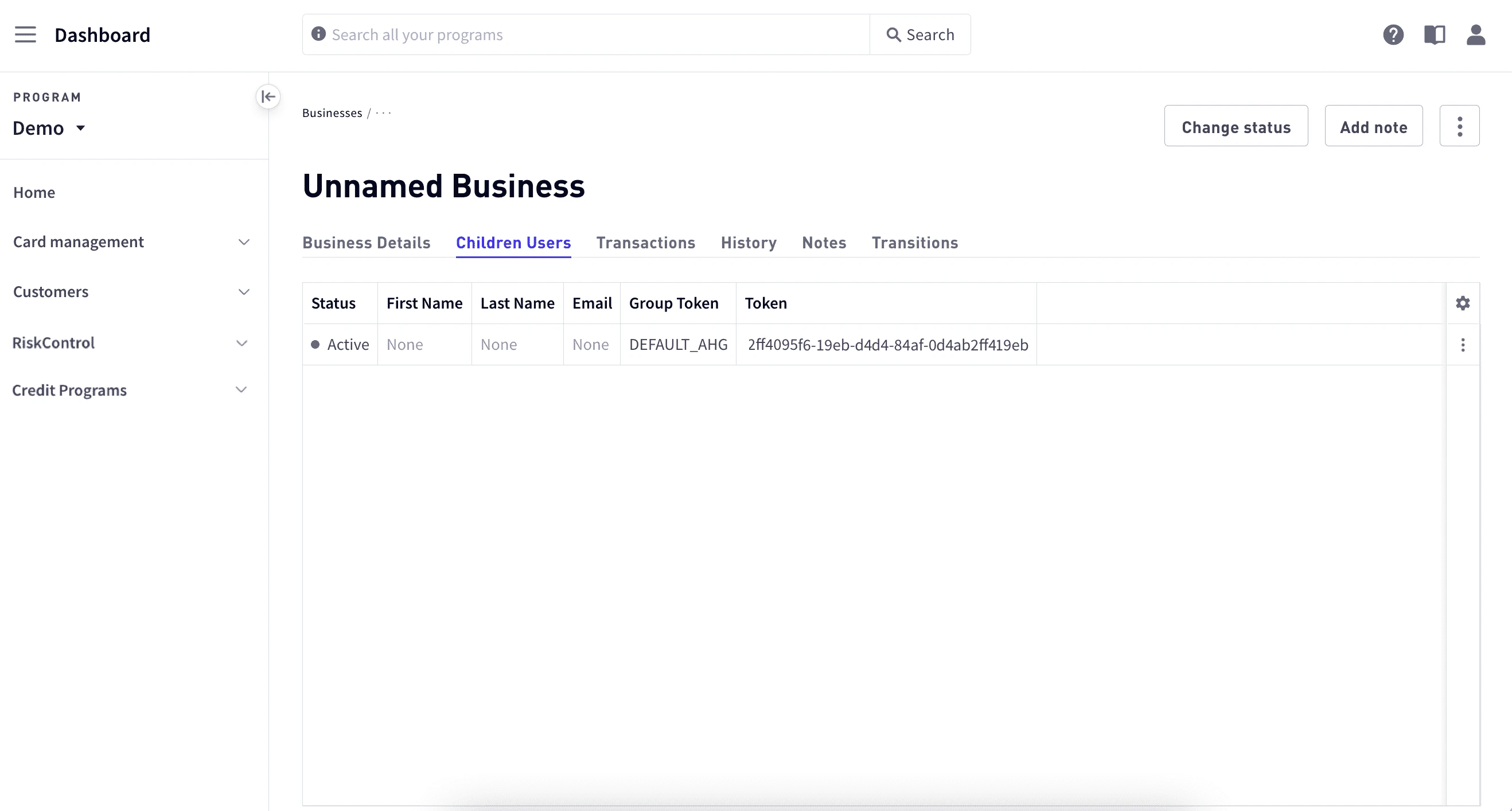
Children users
Use Child Users to manage cards associated with a business. To view children users:Select Dashboard in the upper-left corner, select Customers > Users in the sidebar, and then select the user. To search for a business, select Filter table.
Select the Children Users tab. For details on the Children User fields, see Users.
Viewing children user details
To view children user details, select the row in the summary view. For more information on children users, see Users.Changing a business card’s status
You can set a card status to Active, Terminated, or Suspended. To change a card’s status:Select Dashboard in the upper-left corner, select Customers > Users in the sidebar, and then select the user. To search for a business, select Filter table.
Select the vertical ellipses to the right in the row of the card to report and select Change Status.
Select the new state, select a reason for the change from the dropdown list, and add any additional notes.
Locking a business card
Locking a card temporarily suspends card activity. To lock a card:Select Dashboard in the upper-left corner, select Customers > Businesses in the sidebar, and then select the business. To search for a business, select Filter table.
Replacing a business card
When replacing a damaged or expiring card with the same card number, the current card remains active until the new card is activated, at which point the current card is terminated. To replace a damaged or expiring card:Select Dashboard in the upper-left corner, select Customers > Businesses in the sidebar, and then select the business. To search for a business, select Filter table.
Reporting a business card lost or stolen
Reporting that a card is lost or stolen terminates the card and reissues a new card with a new PAN, which is digitally available (if virtual) or mailed to the user (if physical). The physical card will be sent to the recipient address on file. Terminated cards cannot be used or reactivated. To report a business card lost or stolen:Select Dashboard in the upper-left corner, select Customers > Businesses in the sidebar, and then select the business. To search for a business, select Filter table.
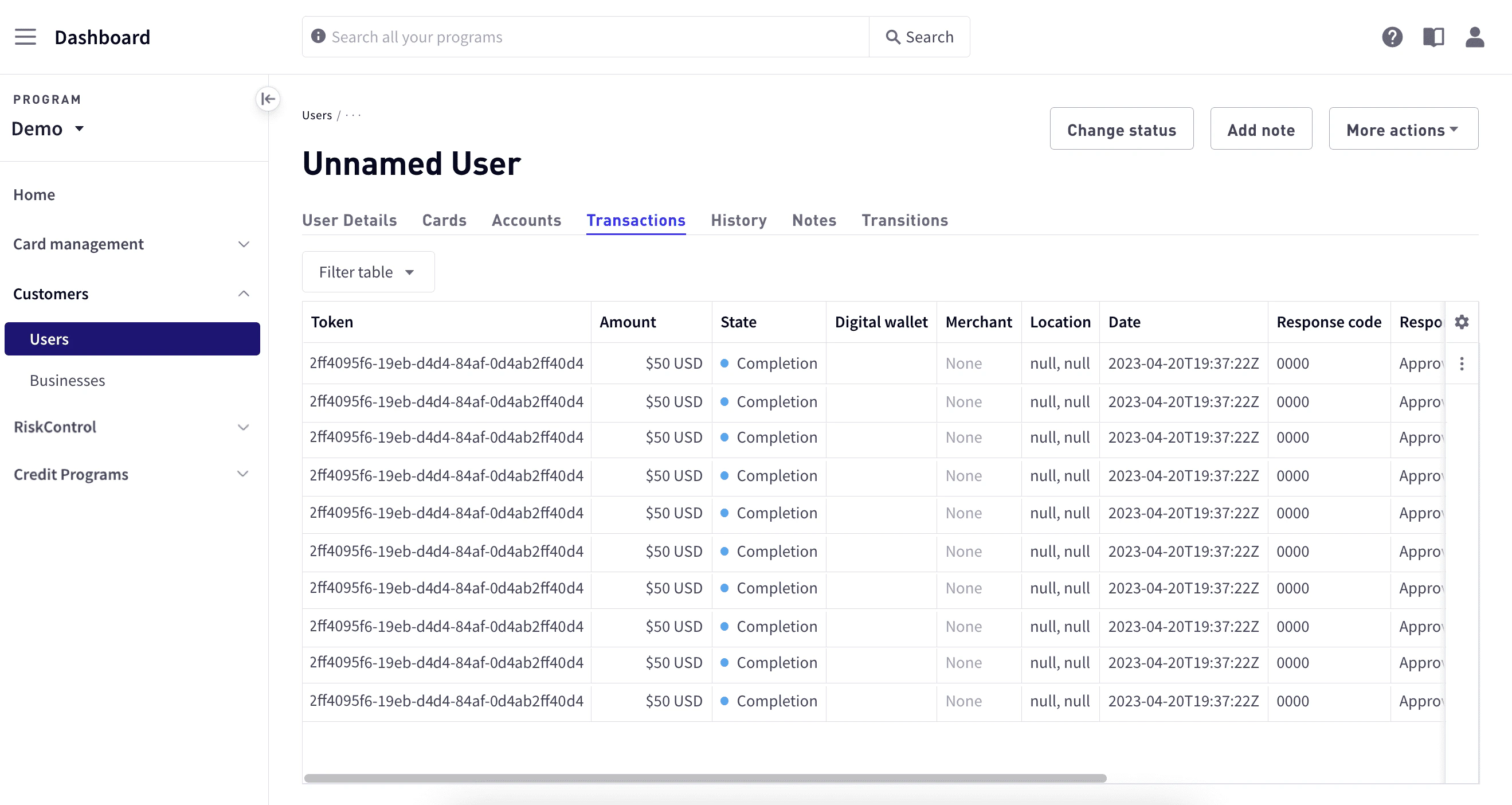
Transactions
Use the Transactions tab to view all transactions associated with a business. To view a business’ transactions:Select Dashboard in the upper-left corner, select Customers > Businesses in the sidebar, and then select the business. To search for a business, select Filter table.
Select the Transactions tab. Use the Filter table button, if necessary. For details on the Transaction fields, see Transactions for users.
History
Use the History tab to view all history associated with a business. To view a business’ history:Select Dashboard in the upper-left corner, select Customers > Businesses in the sidebar, and then select the business. To search for a business, select Filter table.
On the History tab, use the Filter table button if necessary. For details on the displayed information, see History for users.
Notes
Use the Notes tab to view all the notes associated with a business. To view a business’ notes:Select Dashboard in the upper-left corner, select Customers > Businesses in the sidebar, and then select the business. To search for a business, select Filter table.
Select the Notes tab.
The tab includes the following information:

| Field | Description |
|---|---|
| Description | A description of the note. |
| Created By | The user who created the note. |
| Created By User Role | The role of the user who created the note. |
| Private | Indicates whether the note is private or not. |
| Token | Unique identifier of the note. |
Select Dashboard in the upper-left corner, select Customers > Businesses in the sidebar, and then select the business. To search for a business, select Filter table.
Transitions
Use the Transitions tab to view all transitions associated with a business. To view transitions:Select Dashboard in the upper-left corner, select Customers > Businesses in the sidebar, and then select the business. To search for a business, select Filter table.
Select the Transitions tab.
The tab includes the following information:

| Field | Description |
|---|---|
| Created Time | The date and time when the transition occurred. |
| Status | The current status of the transition. |
| Reason Code | The standard code describing the reason for the transition. |
| Reason | Additional information about the state change. |
| Channel | The mechanism by which the transition was initiated: - ADMIN – Indicates that the card transition was initiated through the Marqeta Dashboard.- API – Indicates that the card transition was initiated by you through the Core API. Use this value when creating a card transition with an API POST request.- FRAUD – Indicates that either Marqeta or the card network has determined that the card is fraudulent.- IVR – Indicates that the card transition was initiated through your Interactive Voice Response system.- SYSTEM – Indicates that the card transition was initiated by Marqeta. For example, Marqeta suspended the card due to excessive failed PIN attempts. |
| Token | The transition token. |
| Last Modified Time | The date and time when the user was last modified, in UTC. |
| Business Token | The unique identifier for the business. |