

- View all configured card products (virtual and physical) and relevant information.
- Order cards from existing card products (either single or in bulk).
- View the results of bulk card ordering file uploads.
The basics
To manage card products, log into the Marqeta Dashboard, select Dashboard in the upper-left corner, then select Card Management > Card products in the sidebar. For more on accessing the Marqeta Dashboard, see Accessing the Marqeta Dashboard.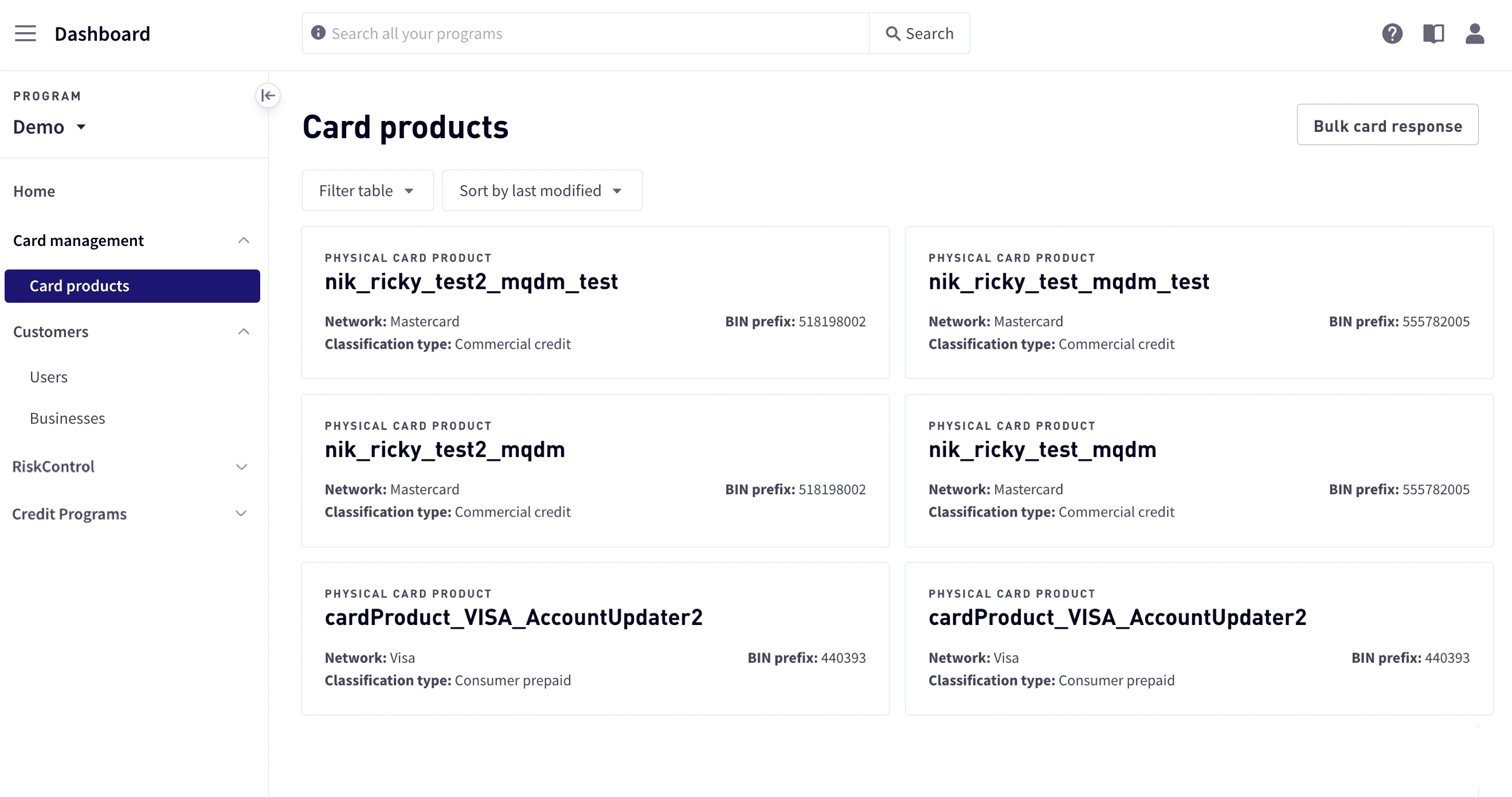
How to…
Viewing a list of card products
To view a list of card products, go to Dashboard > Card management > Card products. The current card products are displayed with summary information, including the network, classification type, and BIN prefix.Viewing card product details
To view a list of card products:1
Select Dashboard in the upper-left corner, then select Card Management > Card products in the sidebar.
2
Select the card product to view. Detailed information includes card product information and information on product velocity and authorization controls.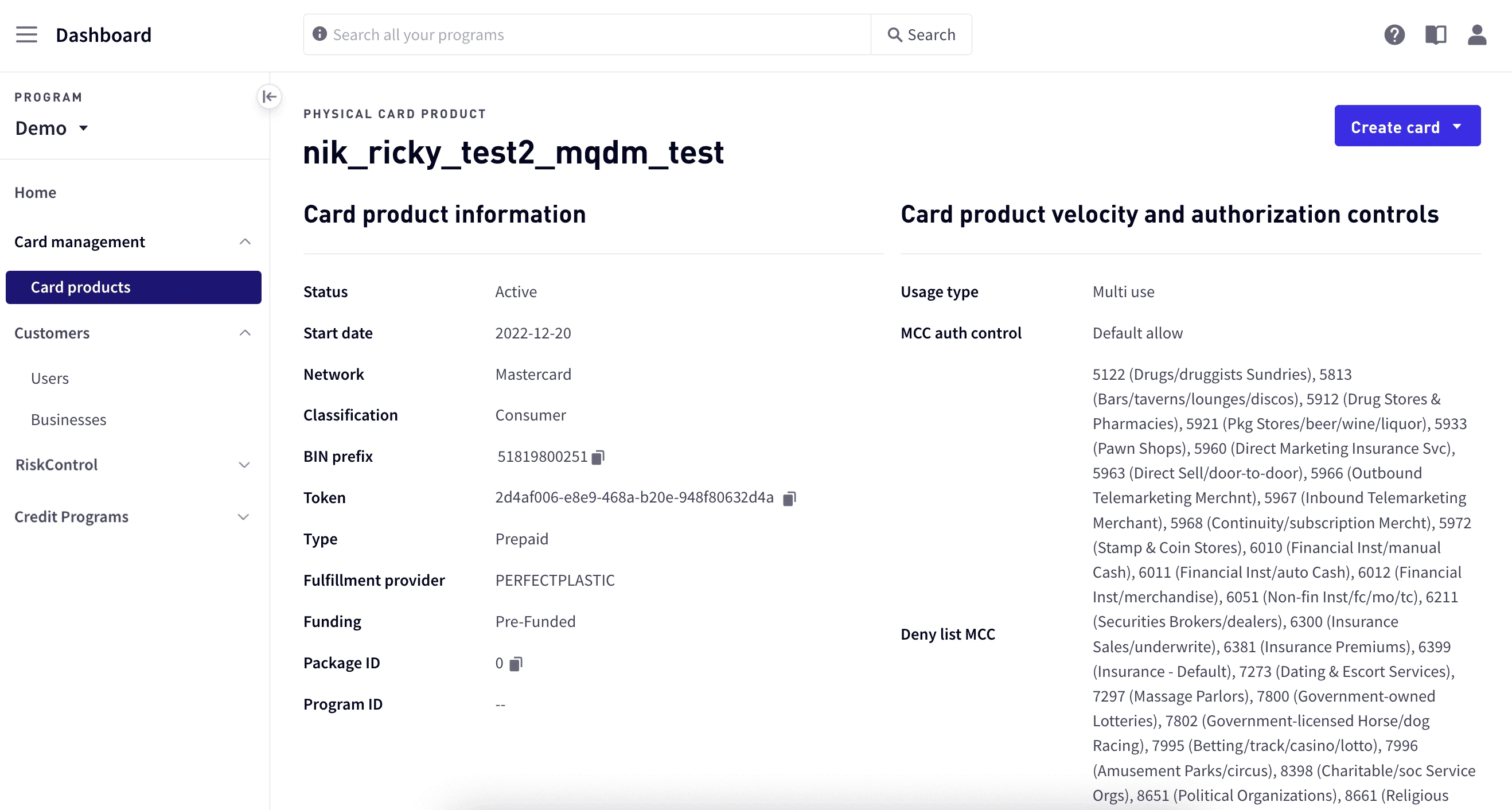
Card product information
Card product velocity and authorization controls
Creating a card
You can manually create a card or create cards in bulk by uploading a file that contains the information about the cards to create. When you create a card, a card is created from a card product. When you manually create a card, you will create a single card and will need to enter the details. For bulk card creation, the details are entered into a file that can be uploaded to create multiple cards from the card program.Manually creating a card
When you manually create a card, a new card is issued from the currently selected card product. To manually create a card:1
Select Dashboard in the upper-left corner, select Card management > Card products, and then select a card product.
2
In the upper-right corner, select Create card > Manual create card.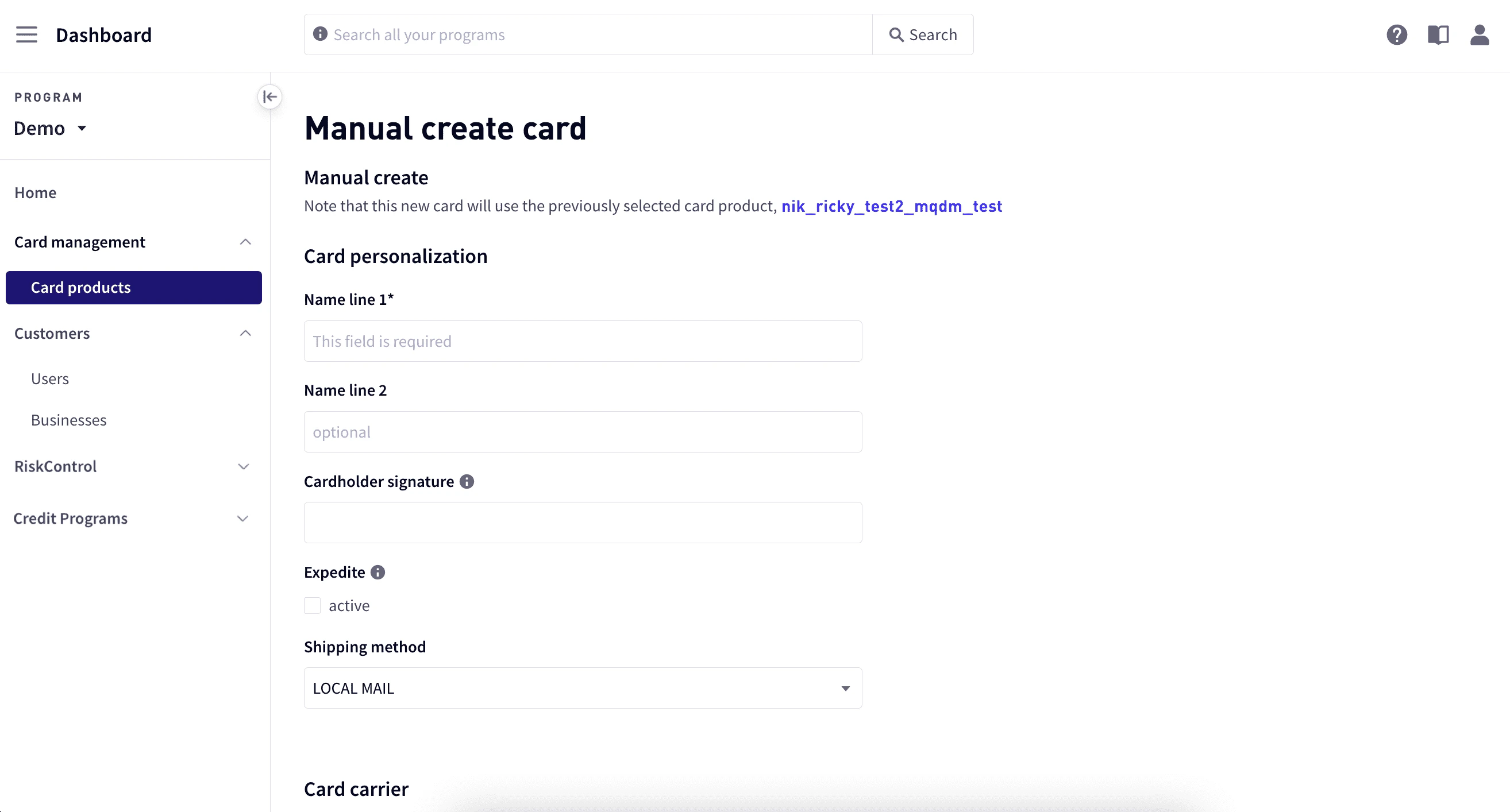
3
In Manual create card, enter the details for the card.
4
Select Create card.
Creating cards in bulk
To create cards in bulk:- Download the template.
- Create the bulk upload file.
- Create the object rows.
- Upload the file.
- View the response report.
Download the template
To download the template:1
Select Dashboard in the upper-left corner, select Card management > Card products, and then select a card product.
2
In the upper-right corner, select Create card > Bulk create cards.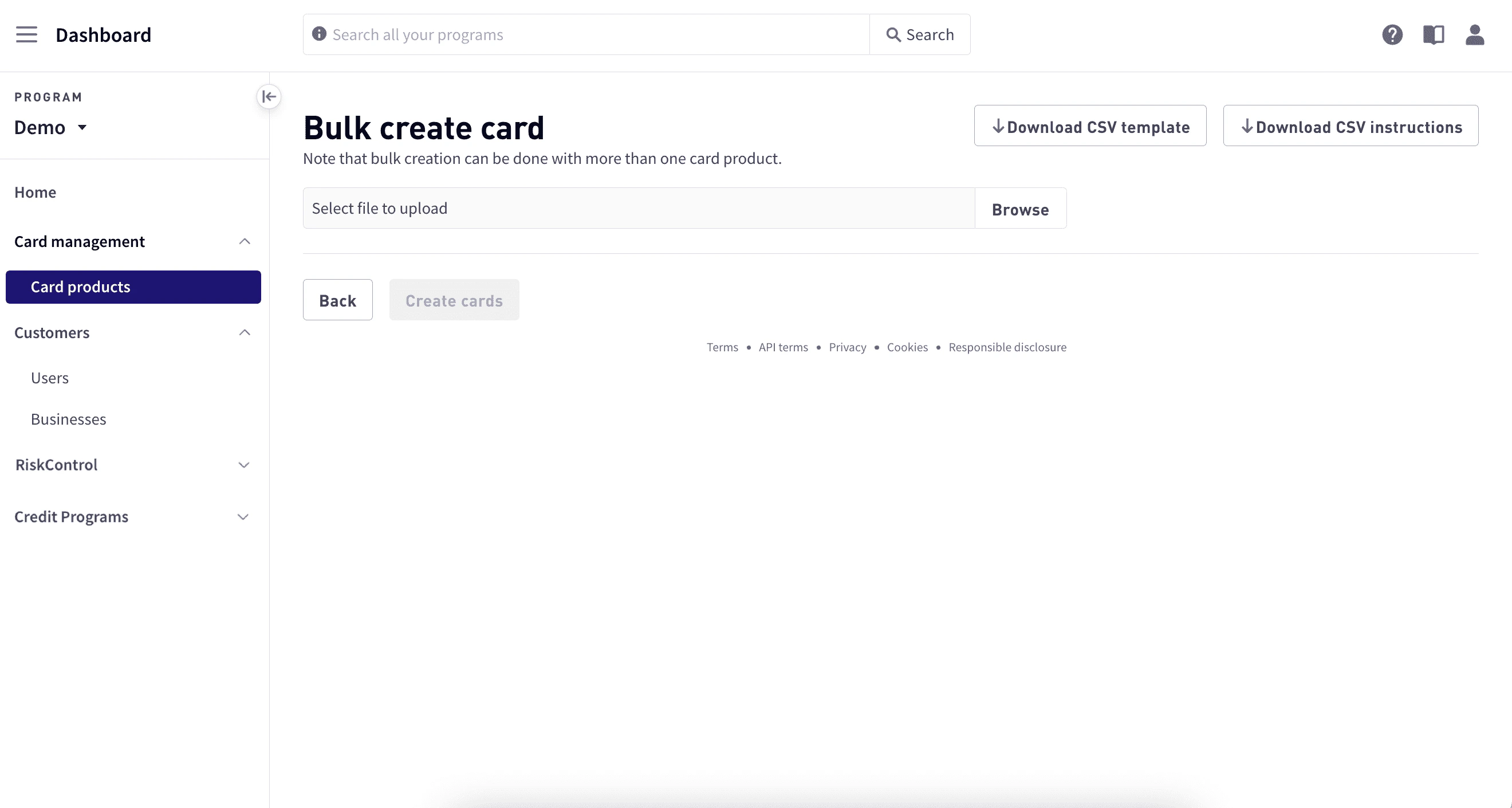
3
In Bulk create cards, select Download CSV template in the upper-right corner.
Create the bulk upload file
Using the template, create and populate your upload file. The file must conform to the following requirements:Create the object rows
To create a new object, begin a new row in the CSV file after the Comments row with the keywordCREATE. To update an existing object, begin the row in the CSV file with the keyword UPDATE.
The CREATE action represents a POST request to the Core API of the Marqeta platform, while the UPDATE action represents a PUT request.
Follow either action with a comma-separated list of values that matches the fields you included in the HEADERS row, such as CREATE, true, myUserToken, John, Smith.
For each object row of the CSV file, you must specify whether you are creating or updating a user, card, or funding request.
- For rows that create or update a user, set
ApplyToUsertotrue. - For rows that create or update a card, set
ApplyToCardtotrue. - For rows that create a funding request, set
ApplyToFundstotrue.
Warning
You can create a new funding request, but you cannot update an existing request.
You can create a new funding request, but you cannot update an existing request.
HEADERS row with the appropriate value for each record:
- To create a User object – no required field.
- To create a Card object –
CardProductToken. - To create a Funding Request object –
FundsAmount.
Upload the file
To upload the bulk file:1
Select Dashboard in the upper-left corner, select Card management > Card products, and then select a card product.
2
In the upper-right corner, select Create card > Bulk create cards.
3
In Bulk create cards, select Browse and locate the CSV file.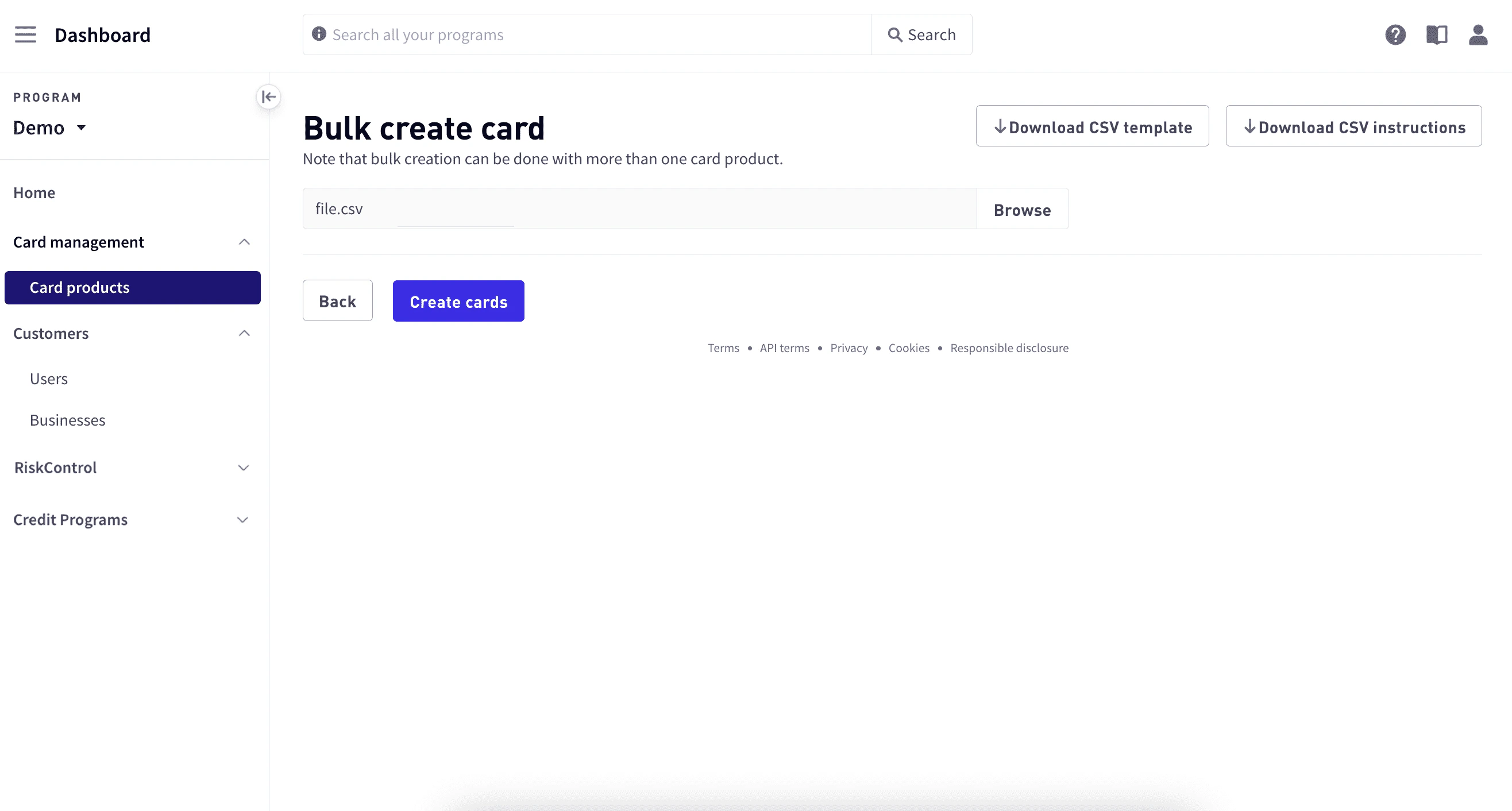
4
Select Create cards.
View the response report
After the Marqeta platform processes your bulk upload file, it generates a response report containing your complete request along with response data for each record in the file. Depending on the size of the upload file, the report may take several minutes to generate. To view the report: In Card products, select Bulk card response in the upper-right corner.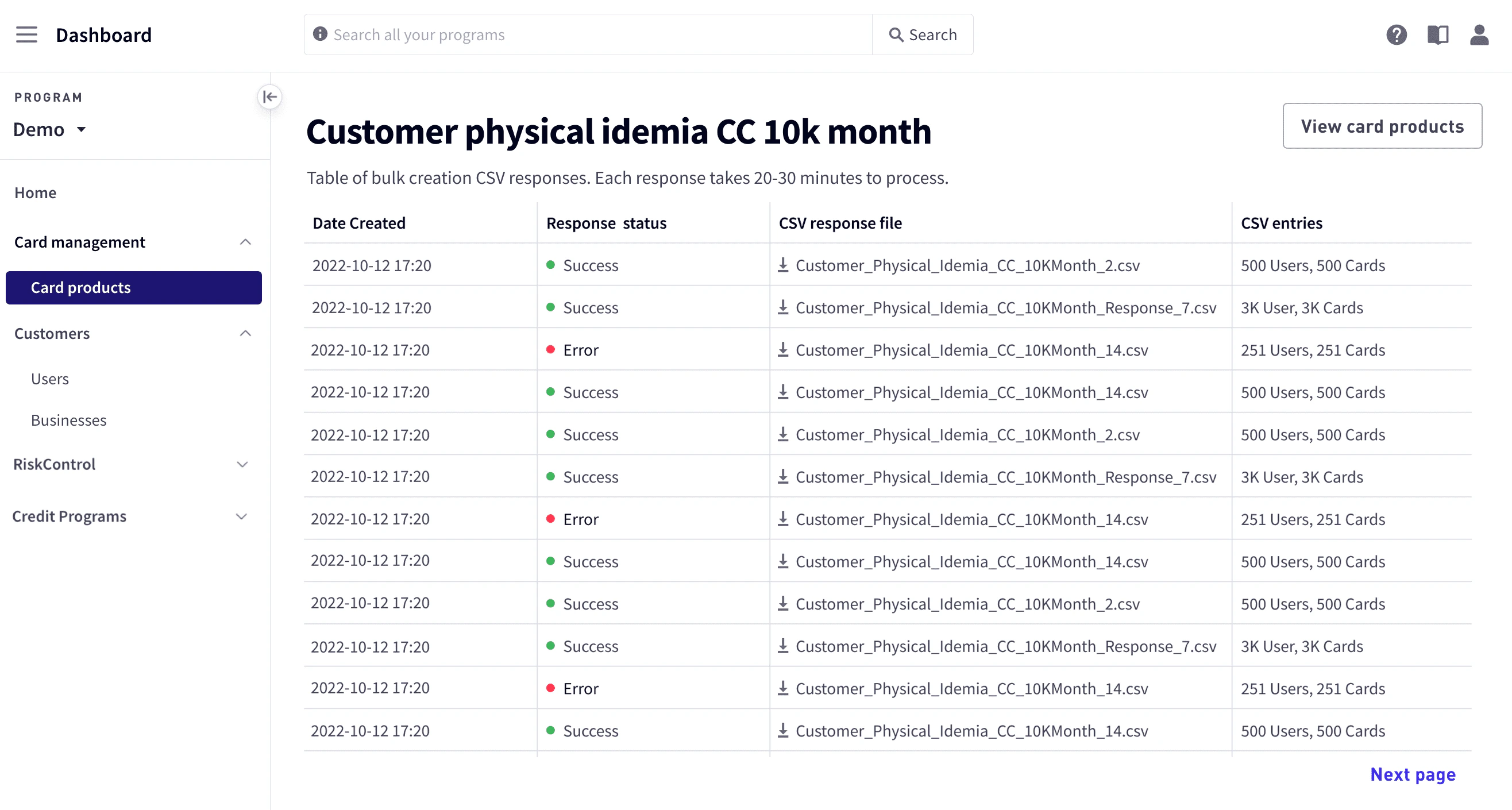
Recovering from an error
If any of the object rows in your bulk upload file generate an error during processing, the Marqeta platform includes the error in the response report. For each object, a description of the error is returned in one of the following fields:UserMessage, ifApplyToUseristruein the request.CardMessage, ifApplyToCardistruein the request.FundsMessage, ifApplyToFundsistruein the request.
Warning
Do not modify the filename or other elements of the response report file.Do not re-upload the original bulk upload file.
Do not modify the filename or other elements of the response report file.Do not re-upload the original bulk upload file.